Brother P-touch Label Maker: How to Choose the Right Setup
20th Oct 2026
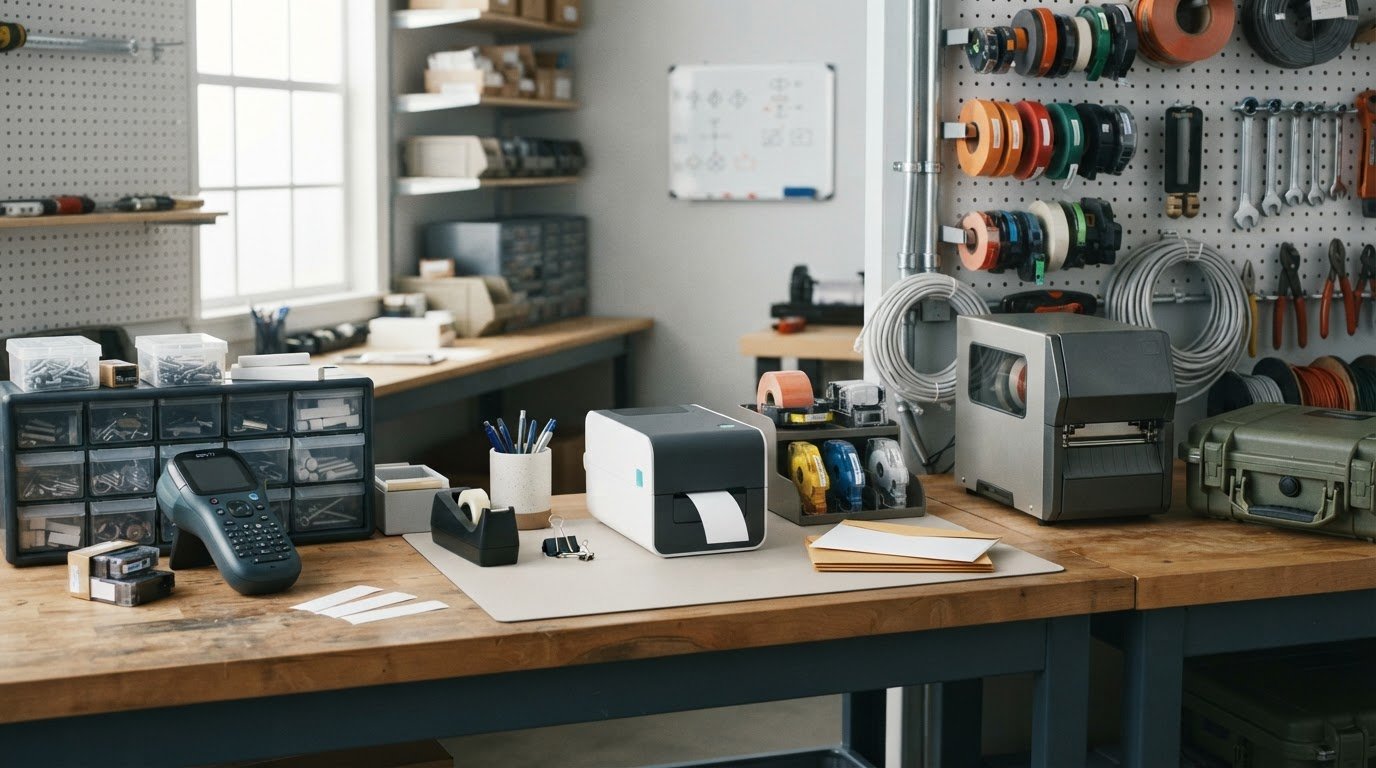
What if the best brother p-touch label maker for you isn’t the one with the longest feature list, but the one that fits the way you label? A handheld unit, desktop model, or industrial format can each suit a different workflow. And even the right printer won’t help if you choose tape that doesn’t match the model or the job.
Choosing can feel complicated when product pages emphasize specs instead of what you need to label. This guide makes the decision practical: you’ll learn how to compare P-touch formats, identify the tape considerations that matter, and check compatibility before you buy. We’ll focus on your labeling tasks first, then narrow down the model and tape setup. DuraFast Label Company carries Brother label makers and P-touch tapes, including TZe and HSe options, and its product-name and SKU search can help you find listed products as you refine your choice.
Key Takeaways
- Choose a brother p-touch label maker by matching its format to where and how you’ll label.
- Compare task frequency, work location, label format, and number of users to focus on features that matter to your workflow.
- Before selecting tape, identify the exact model and check which tape family it supports.
- TZe and HSe are distinct tape categories, so match the tape choice to your model and labeling task.
- Use DuraFast’s product-name or SKU search to navigate its Brother label makers and P-touch tapes.
What Is a Brother P-touch Label Maker, and What Can It Help You Label?
A P-touch label maker creates labels using compatible tape. For a household, it can make everyday items easier to sort; for a workplace, it can help identify equipment, supplies, and business items. The right setup depends on what you need to label, where you’ll use it, and how often the task comes up.
Brother Industries developed products across different categories, including P-touch label printers. For background on the company and product development, see Brother Industries and P-touch development. For shoppers, the practical starting point is simpler: think about the labels your workflow calls for, rather than choosing a device based on a feature list alone.
A Brother P-touch label maker prints labels on compatible tape for organizing, identifying, and marking items.
Which labeling tasks suit a P-touch label maker?
Consider what needs a label and how regularly you’ll make them. Occasional household jobs might include marking storage bins, pantry containers, folders, or personal supplies. These tasks are often handled one label at a time, as a need comes up.
Workplace identification can include labeling cables, shared equipment, file areas, supply containers, or other business items. If staff need labels repeatedly, think about who will create them, where the device will be used, and whether the same label formats recur. A task-led choice helps distinguish a simple, occasional need from an established business workflow.
Match the tape and model to the actual application. Don’t assume a label will withstand a particular environment or meet a specific requirement just because it comes from a label maker. Confirm that the product information supports the use you have in mind.
How is a P-touch label maker different from a roll-label printer?
The formats handle labels differently. A P-touch label maker prints onto compatible tape, which is supplied as a tape cassette or cartridge for supported models. A roll-label printer prints on label stock supplied in a roll. That difference affects how you load, handle, and store the label material, as well as what kind of labeling task you may consider for each format.
Tape-based labels can suit jobs where you want to create individual labels for items such as cables, files, or storage. Roll-fed formats may be relevant when your workflow calls for labels supplied in rolls, such as repeated labeling of business items. The intended label and process should guide the decision. Neither format is automatically faster, better quality, or less expensive in every situation.
Some needs may call for a different label category altogether. For example, inkjet card grading labels are a separate format from P-touch tape. Keeping label format in view helps you choose equipment and supplies that fit the task without assuming one setup covers every application.
Brother P-touch Types Explained: Handheld, Desktop, and Industrial
Handheld, desktop, and industrial are useful starting points, not guarantees about what a particular machine can do. Models within a category can differ in controls, power options, connections, and supported tape. Compare the details for the exact model you’re considering, then choose based on where labels are made and how the work gets done.
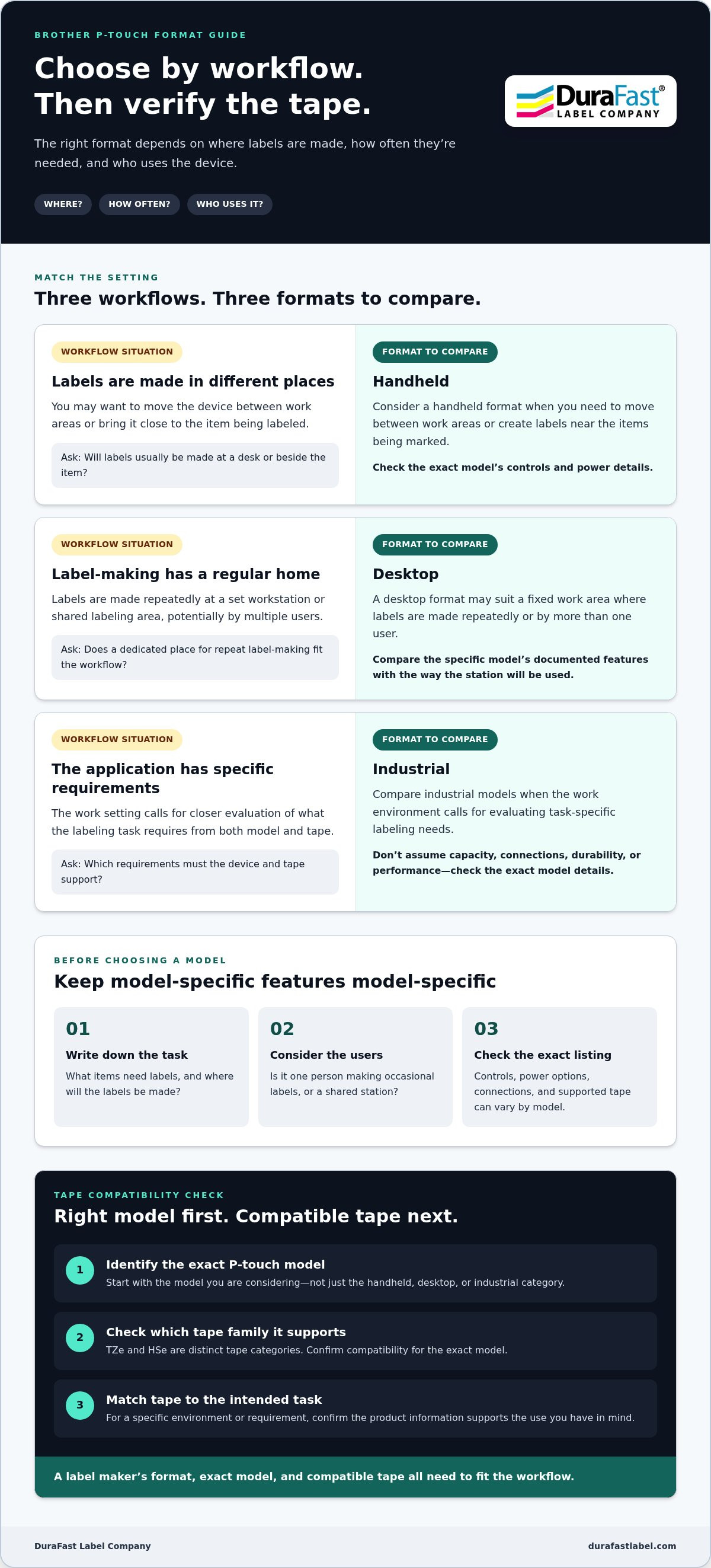
Choose a label-maker format by following your labeling workflow: where you create labels, how often you need them, and who will use the device.
| Format | Likely work setting | Key selection question |
|---|---|---|
| Handheld | Different locations, or near the items being labeled | Will you create labels where they’re applied, and do the controls suit the task? |
| Desktop | A set workstation or shared labeling area | Does a dedicated place for repeat label-making fit the workflow? |
| Industrial | A work environment with task-specific labeling needs | Which requirements must the model and tape support for this application? |
When does a handheld P-touch format make sense?
Consider handheld formats if you want to move the label maker between work areas or bring it close to the items being labeled. Ask yourself: will labels usually be created at a desk, or beside a cabinet, cable, or piece of equipment? That simple distinction can help narrow the format. Then compare the specific model’s controls and power details on its listing, since these vary.
When should you compare desktop or industrial P-touch options?
A desktop format may suit a fixed work area where labels are made repeatedly or by multiple users. Industrial models deserve comparison when the work setting calls for evaluation of task-specific needs. Don’t assume every desktop or industrial unit has the same capacity, connections, durability, or performance. Check each model’s documented features against the actual labeling process before choosing.
Think through a typical work session. Will one person make occasional labels, or will different users return to a shared station? Do labels need to be created in one location, or applied across several areas? Write down the tasks and constraints first. This gives you a practical way to compare a brother p-touch label maker without letting an appealing feature distract from a requirement the model doesn’t meet.
Features aren’t universal across the categories. Some model listings may describe a keyboard, computer connection, or other controls; another model may use a different setup. Treat each feature as model-specific. Check the product details for the exact unit rather than assuming that handheld, desktop, or industrial automatically means a particular input method or power arrangement.
DuraFast lists Brother P-touch Edge industrial printers among its Brother label-maker offerings. If you’ve narrowed down the work setting but still need to describe your requirements, you can discuss your labeling needs with the DuraFast team.
Brother P-touch Label Maker Comparison: Match Features to Your Workflow
A useful comparison starts with the work, not a list of extras. Think about how often labels are made, where the device will sit, what format the labels need, and how many people will use it. Those answers help you identify which product details deserve a closer look and which won’t affect your day-to-day process.
Use this matrix to frame your search. It won’t name one model as best for everyone; it gives you practical questions to apply to the options you’re considering.
Task frequency: For occasional labeling, ask whether the controls and steps feel straightforward for a one-off job. For recurring tasks, consider how often users repeat the same process.
Work location: Decide whether the label maker will stay at a set workstation or be used near the items being labeled. Compare the model’s documented form and power details with that location.
Label format: Identify the tape type and label dimensions your task calls for, then compare those needs with the model’s supported supplies and specifications.
Number of users: Consider whether one person will create labels or several people will share the equipment. Check that the listed controls and workflow suit the intended users.
If you’ve outlined your workflow and want to talk through your label-maker requirements, discuss your label-maker requirements with DuraFast.
Which features matter for occasional versus recurring labeling?
For occasional jobs, prioritize clear controls and a process that feels easy to follow. For recurring work, examine the steps users repeat: entering label content, preparing the format, and producing the next label. Features such as templates, display types, cutters, and connectivity may help with a specific process, but they’re model-specific. Give them weight only when the intended model listing confirms them and they solve a real workflow need.
How should a home user and a business buyer compare options?
A home user may need labels for personal organization and use the device only when a sorting task comes up. A business buyer may need to account for shared use, repeat tasks, or different work locations. In either case, identify who will create labels and where the device will be used. Then compare the exact model’s listed features against those needs, without assuming a business label maker automatically offers greater output or durability.
Before choosing a brother p-touch label maker, make a short checklist: expected task frequency, main work location, required label format, number of users, and any feature that’s essential. Separate must-haves from preferences. For example, if several people will use the device, controls may matter more than a feature nobody needs. If a specific connection or display is important, verify that detail on the product listing rather than inferring it from the category name.
This approach also makes product comparisons easier to revisit. If the workflow changes, update the checklist and reassess the setup. A good match is the option whose confirmed details fit the work, not simply the model with the longest specification list.
How to Choose Brother P-touch Tapes and Check Compatibility
Tape choice starts with the exact label maker, not just the Brother name. P-touch models can have different tape compatibility, so a tape that suits one device may not suit another. Confirm the model and its supported tape details before selecting supplies. This quick check can help prevent a mismatch and keep your choice focused on the labels you need to create.
Confirm tape compatibility against the exact model before buying.
What should you check before buying Brother P-touch tape?
Use the model name or SKU shown on the device or its documentation. Then compare that exact model with Brother’s documentation and the tape product listing. Check the stated tape family and format, along with any fit details provided. A general match to the P-touch brand isn’t enough to establish compatibility.
- Identify the exact label-maker model. Record the full model name or SKU, including any letters or numbers that distinguish it from a similar model. If you’re replacing tape, don’t rely on memory or the device’s general product family.
- Check the supported tape family and format. Consult the model’s Brother documentation for compatible tape categories and fit details. Compare those requirements with the information on the tape listing. If the model documentation names a specific family or format, use that information to narrow your options.
- Match the compatible tape to the task. Consider what you’ll label, such as a file, cable, storage item, or workplace equipment. Review the product listing for details that matter to that application. Don’t assume a tape has a particular material, performance, or environmental property unless the product information states it.
How do TZe and HSe tape categories fit into the selection process?
TZe and HSe are distinct categories in DuraFast’s listed Brother P-touch tapes. Treat each as a separate option, not as interchangeable labels for the same tape. First use your model documentation to determine which category is supported. Then choose among compatible options by comparing the stated details with the label task you have in mind.
A careful match considers both ends of the setup: the tape must fit the label maker, and its listed details must suit the intended use. For example, labeling a folder and identifying a cable are different tasks, even if both call for a printed label. Start with compatibility, then review the product information relevant to that job. Avoid choosing solely by category name or by assuming that every tape in a family works with every model.
If you already know the model name or SKU, use it as your reference while browsing tape options. DuraFast’s product-name and SKU search can help you navigate listed products. Keep the model details close as you compare, and use Brother documentation to resolve compatibility and fit information. This makes the selection process clearer than starting with a broad search for tape alone.
Need help discussing your requirements for a Brother label maker and compatible tape? Discuss your P-touch tape and label-maker requirements with DuraFast.
Find a Brother P-touch Label Maker and Supplies at DuraFast
Once you’ve identified the format and tape requirements that fit your work, narrow your search by product name or SKU. DuraFast lists Brother label makers and Brother P-touch tapes, including TZe and HSe tapes. Use the product-name and SKU search widget to navigate listed products, then review the details on any relevant product page before making a selection. This keeps the search tied to the model or supplies you’re looking for, without relying on a broad brand-name match alone.
How can product-name and SKU search simplify product discovery?
Already have a model name or SKU? Enter that specific information in the search widget to look for related listings. If a matching listing appears, its product page gives you a place to review the details provided for that item. Compare those details with the intended task and, for tape, the model’s compatibility information. If you’re still exploring, search by a product name or category to navigate the listed options.
Keep your search terms precise. A model identifier is more useful than a general query if you’re replacing a device or matching supplies to equipment you already use. Check the spelling and characters in the name or SKU, then compare the resulting product information with your notes. Search helps you navigate; the product details and Brother model documentation remain important for evaluating fit.
What information should you have ready before choosing?
A short checklist makes it easier to connect your needs with the product details you find. Before browsing, note:
- The task you want to handle, such as organizing items or identifying workplace equipment.
- The work setting, including whether labels will be made at a regular workstation or near the items being labeled.
- Your preferred label-maker format, based on how the device will fit into the workflow.
- The model name or SKU if you’re replacing a label maker or matching tape to existing equipment.
- Any product details you need to compare, such as the stated tape family or other specifications relevant to your task.
For tape, use the exact model as your reference and compare its supported family with the details on the tape listing. DuraFast lists TZe and HSe as separate Brother P-touch tape categories, so choose based on verified compatibility and the job rather than assuming they’re interchangeable. The same task-first approach helps you evaluate a brother p-touch label maker: start with what you need to label, then use the model and product details to narrow the choice.
Have your task, work setting, preferred format, and model information ready. Bring your selection questions to DuraFast, or Contact DuraFast to discuss your Brother label-maker and tape requirements.
Put Your P-touch Setup Into Practice
Turn your labeling needs into a short buying checklist before you choose a brother p-touch label maker. Note the task, where you’ll use the device, the format that suits your workflow, and the model details needed to match tape. With those priorities clear, you can focus on products that fit instead of getting sidetracked by features that don’t affect your work.
DuraFast lists Brother label makers and Brother P-touch tapes, including TZe and HSe categories. Use the product-name or SKU search to navigate listed products and explore the details relevant to your setup. If you’d like to talk through your requirements as you make your selection, discuss your Brother P-touch label-maker needs with DuraFast. A clear task and the right model information are a practical place to start. You’re ready to move forward with confidence.
Frequently Asked Questions
Is a Brother P-touch label maker suitable for business use?
Yes, a Brother P-touch label maker can suit business labeling when its format, supported tape, and workflow match the job. A small office might label shared folders or supply containers; a maintenance team may need identification labels near equipment. For repeat or task-specific workplace use, compare the exact model’s controls and stated capabilities with who will use it and where. Don’t treat the P-touch name alone as proof of suitability.
Can Brother P-touch label makers use different tape types?
Yes, but the tape options depend on the specific model. Different P-touch label makers may support different tape families, so a tape that fits one device may not fit another. Before reordering, note the model name and check its documentation for supported tape. Comparing the tape listing with those details can help you avoid choosing supplies based only on a general brand match.
How do I know which Brother P-touch tape fits my label maker?
Find the full model name or SKU on your device or its documentation, then consult the model’s Brother manual for its supported tape family and fit details. Compare that information with the tape listing before buying. If you manage several devices, keep a simple record pairing each model with its compatible tape category. That makes future supply checks easier and helps prevent mix-ups between workstations.
What is the difference between a Brother P-touch label maker and a Brother QL printer?
They use different label formats. P-touch label makers print onto compatible tape, while Brother QL printers use Brother DK label supplies. That affects how you load and handle the media, and which format may fit a given task. For example, consider whether you need tape for item identification or a DK label format for your process. Check each printer’s supported supplies rather than treating the systems as interchangeable.
Can I use a Brother P-touch label maker without a computer?
It depends on the model. Some P-touch label makers have their own controls for creating labels, while other models rely on a computer or a supported connected workflow. Before choosing, check the product details and manual for how that exact device accepts label content. If you want to work away from a computer, make standalone operation a specific requirement in your comparison, rather than assuming every model works the same way.
What should I do if my Brother P-touch label maker does not print clearly?
Start with a few basic checks: confirm the tape is seated as the manual instructs, make sure it’s compatible with the exact model, and review the text or formatting before printing again. If the result remains unclear, consult the model’s troubleshooting guidance for cleaning and setup steps. Follow the manual’s instructions rather than trying an unlisted cleaning method, and note any error message or change in print quality.
Are Brother TZe and HSe tapes interchangeable?
Don’t assume they’re interchangeable. TZe and HSe are distinct tape categories, and compatibility depends on the specific label maker. Check the model’s documentation to see which category it supports, then compare the stated details on the tape listing. If a workplace uses more than one P-touch model, keep supplies identified by category and device. That simple habit can help prevent loading a tape that isn’t specified for the machine.