Godex Desktop Thermal Printers: How to Choose the Right Setup
4th Oct 2026
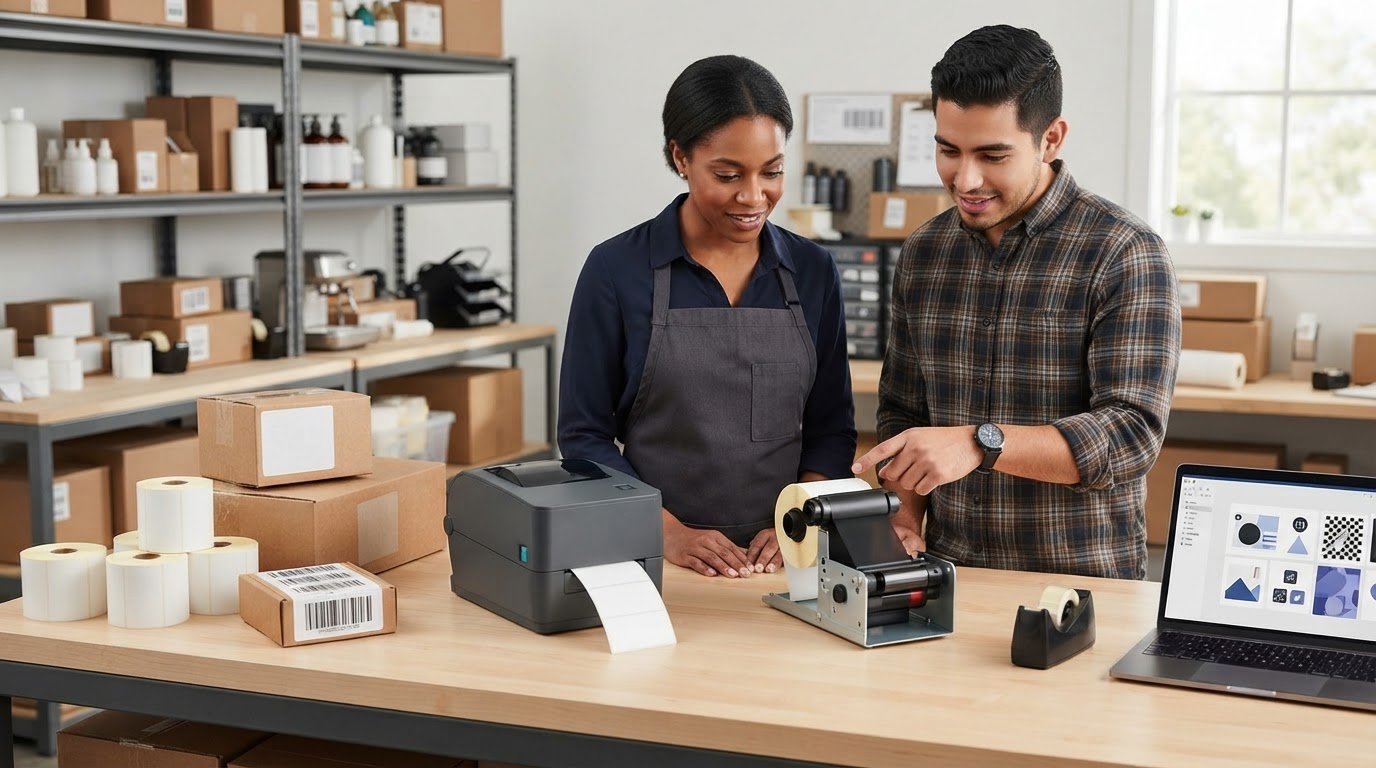
The best Godex desktop thermal printers setup isn’t chosen by printer specs alone. A printer can look like a good fit and still mismatch your label stock, print method, or daily workflow. If you’re unsure which setup will handle your application without adding unnecessary complexity, start with how and what you need to print.
It’s easy to focus on print volume or connectivity first. But label durability, media dimensions, and whether you need direct thermal or thermal transfer printing can shape the decision just as much. The right fit balances these practical details, so you can print reliably without choosing more capacity or features than your work requires.
This guide walks through the selection criteria to consider before comparing specific Godex models. You’ll learn how to match print method and media to the label’s use, assess whether desktop capacity suits your expected volume, and identify connectivity, driver, and software details to review. DuraFast’s Godex desktop printer and thermal-media categories can help you think about the printer and supplies as one setup, not separate purchases.
Key Takeaways
- Match Godex desktop thermal printers to the labels and tasks they’ll handle, from shipping and product labels to barcode identification.
- Compare printer specifications against real workflow needs instead of choosing by a single headline feature.
- Choose direct thermal or thermal transfer with the label’s intended use and exposure conditions in mind.
- Plan the full setup together: label stock, ribbon, printer, connection, driver, and design software all need to work as a system.
- Gather your label and workflow requirements before comparing options, then use them to narrow the printer and supplies that fit.
What Godex Desktop Thermal Printers Are Designed to Do
Godex desktop thermal printers are compact, workstation-oriented devices that produce labels by using heat, either to activate a heat-sensitive label surface or to transfer ink from a ribbon. Thermal printing covers both methods, as outlined in this Thermal printing overview.
These printers can support routine labeling at a counter, packing station, office desk, or other work area. But “desktop” describes the printer’s general form and role, not a guarantee of one standard print capacity. The right fit depends on the application, expected print volume and operating pattern, label media, and available workspace. Compare those needs before focusing on a specific model.
What makes a thermal label printer a desktop model?
A desktop printer is designed to sit at a workstation rather than serve as a large, production-line machine. That can make it a practical option when labels are printed near the point of use. However, printers in this category can differ in capacity and supported media. Occasional batches and frequent daily runs place different demands on a setup, so consider how often labels will be printed and whether the printer can keep pace with that routine.
Explore the desktop thermal printer category as a starting point. Then compare individual printer specifications with your workload and label requirements.
Which business tasks can desktop thermal printers support?
A desktop thermal label printer produces labels using heat-based printing technology. Depending on the printer, media, and setup, common business applications include shipping, barcode, product, retail, and identification labels.
These are application examples, not a claim that every Godex model supports every label type or workflow. For instance, a shipping station may need labels in a particular size, while product identification may call for smaller text or more detailed barcodes. The label’s dimensions, required print detail, and intended use help determine what printer and media combination is suitable.
Keep the setup in view as a whole. The printer is the hardware; labels provide the printable surface, and thermal transfer workflows also use a compatible ribbon. Label-design software creates the layout, while the driver and connection help send the job to the printer. DuraFast supplies Godex desktop thermal printers alongside thermal labels, thermal transfer labels, ribbons, and label-design software categories. Matching these components helps you evaluate the complete workflow, rather than choosing hardware in isolation.
How to Compare Godex Desktop Thermal Printers for Your Workflow
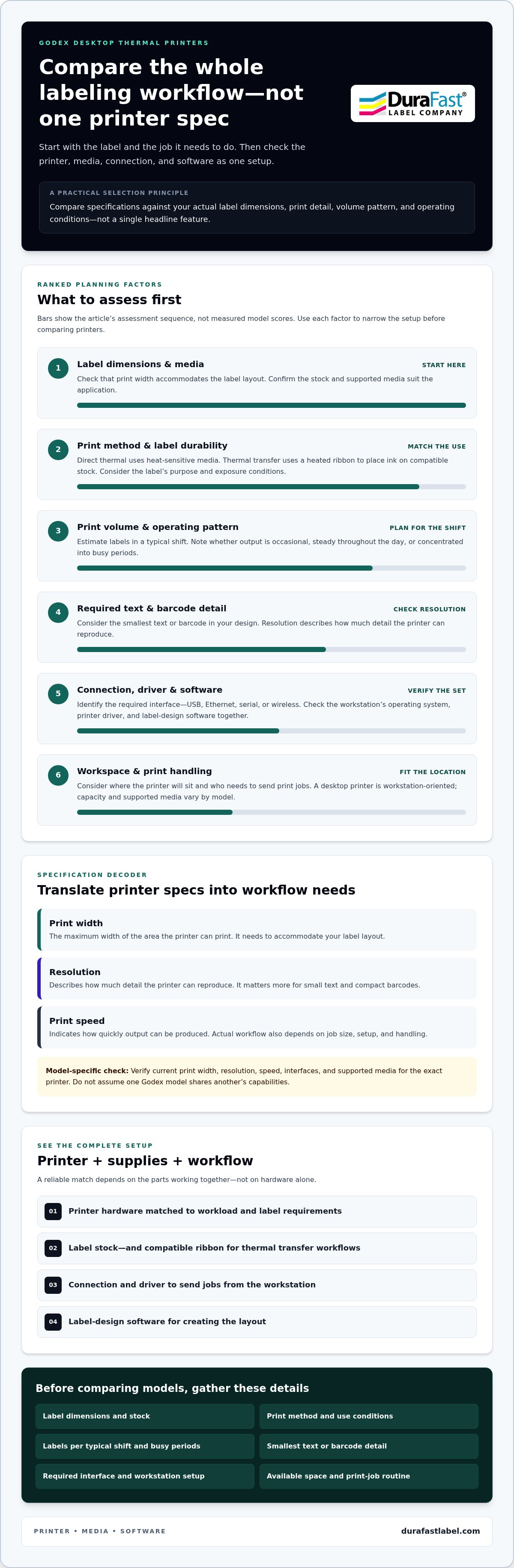
Compare the printer against the job it needs to do. Start with your label’s dimensions, the number you print in a typical shift, the smallest text or barcode you need to reproduce, and the conditions the finished label will face. Those details help you separate essential features from specifications that won’t affect your workflow.
Build a short requirements list before comparing Godex desktop thermal printers. Include the label stock and printing method you plan to use, along with the connection and software requirements of the workstation. Durability depends on the label construction and its exposure conditions, so consider those alongside printer specifications.
Which printer specifications matter most?
Print width is the maximum width of the area a printer can print. It needs to accommodate your label layout. Resolution describes how much detail the printer can reproduce, which matters more for small text and compact barcodes. Print speed indicates how quickly output can be produced, but actual workflow also depends on job size, setup, and handling.
Compare these figures with your actual label dimensions and design. For barcode planning, GS1 US explains key concepts in Barcoding Basics. Treat specifications as model-specific: verify current print width, resolution, speed, interfaces, and supported media for the exact printer under consideration. Don’t assume one Godex model shares another’s capabilities.
How should print volume and connectivity affect the choice?
Estimate how many labels you print during a typical shift, then account for busy periods. A printer used for occasional batches faces a different pattern from one producing labels throughout the day. Consider whether output is steady or concentrated into short, high-demand windows. This gives you a more useful basis for comparing capacity than a rough estimate of weekly use.
Next, map the connection to the workstation. Identify whether your workflow requires USB, Ethernet, serial, or wireless connectivity, and verify that the exact model supports it. Check the computer’s operating system, printer driver, and label-design software as a set. Also consider where the printer will sit and who needs to send print jobs. A convenient interface on paper won’t help if it doesn’t suit the location or existing workflow.
Once you’ve gathered label dimensions, volume, detail requirements, and connection needs, you’ll have a practical checklist for narrowing your options. To discuss printer requirements, share those details as you compare a Godex setup with the supplies it needs.
Direct Thermal or Thermal Transfer: Match the Godex Printer to the Label
Choose a printing method by starting with the label itself. Direct thermal printing uses heat-sensitive media, while thermal transfer uses a heated ribbon to place ink onto compatible label stock. The right choice depends on the label’s purpose, its material, and the conditions it will face, not simply on which method sounds more durable or convenient.
For Godex desktop thermal printers, verify that the specific model supports your intended method and media. Don’t assume every printer handles both. The categories below can help you compare the basic workflows, then narrow the choice based on your application.
When does direct thermal printing make sense?
Direct thermal can suit an application when compatible heat-sensitive labels meet its needs. Since the image forms directly on the label, this method doesn’t use a ribbon. Consider how long the label needs to remain readable and whether heat, light, friction, or other exposure may affect it. Performance varies with label construction and conditions, so avoid assuming a fixed lifespan.
Explore direct thermal printer options alongside the label stock your workflow calls for.
| Method | Media | Typical decision factors |
|---|---|---|
| Direct thermal | Heat-sensitive labels; no ribbon | Label use, exposure conditions, and media compatibility |
When should you consider thermal transfer printing?
Thermal transfer printing uses heat to transfer ink from a ribbon onto compatible label stock. That adds a consumable to the setup, and the ribbon and label materials need to work together for the intended application. Consider the label surface and the environment where it will be used. A method alone doesn’t guarantee resistance to wear, heat, light, or chemicals; those results depend on the complete material combination and exposure.
Review thermal transfer printer options and thermal transfer labels as part of the same media decision. Confirm the exact printer’s supported media and ribbon requirements before ordering supplies. A suitable setup matches printer capability, label stock, ribbon, and actual use conditions, rather than relying on a broad claim that one method is always better.
Plan Labels, Software, and Printer Setup Before Buying
A reliable setup depends on more than the printer. Label stock, ribbon, driver, software, and connection all need to work together. Before ordering, map the job from label design through the finished print. This helps catch practical mismatches early, such as a roll format the printer can’t accept or software that doesn’t support the workstation.
Use this sequence to plan your setup:
- Define the label: Record its dimensions, layout, and intended use.
- Confirm the media: Match the label material and format to the printing method.
- Verify the connection: Check how the printer will connect to the workstation.
- Test the output: Print a sample using the intended label and ribbon, if required.
- Document settings: Save the working configuration and reprint steps.
Apply the same checks to Godex desktop thermal printers as a complete system. Media limits, driver support, and software compatibility can vary by model, so use current documentation for the exact printer rather than assuming one model’s setup applies to another.
How do you confirm label and ribbon compatibility?
Write down label width and length, whether media comes on a roll or in fanfold form, and any core or loading requirements. Compare those details with the printer’s current documentation. For thermal transfer, also match ribbon type and dimensions to both the printer and label stock. A ribbon that fits the printer still needs to suit the label material and application.
Check the supported media configurations for the exact model before selecting supplies. This makes it easier to evaluate printer, label, and ribbon together, rather than troubleshooting a mismatch after setup.
What should you test before routine printing?
Run a sample with the actual label stock and final layout. Inspect each output before putting the printer into regular use:
- Registration: Is the content positioned correctly on the label?
- Print quality: Are text and barcodes clear and readable?
- Feed or cut: Does the label advance and separate as your workflow requires?
- Software and driver: Do they support the printer and the workstation’s operating system?
Once the sample looks right, record the media and ribbon used, software and driver versions, and successful print settings. Keep a repeatable reprint process so another operator can reproduce the result. For help discussing printer, media, or software requirements, contact DuraFast about your setup.
Choose a Godex Desktop Thermal Printer Setup with DuraFast
A good buying decision starts with a clear picture of the job. Before comparing Godex desktop thermal printers, gather the details that connect the printer to your labels, software, and daily workflow. DuraFast supplies Godex desktop thermal printers alongside thermal labels, thermal transfer labels, ribbons, and label-design software categories, helping you consider the hardware and supplies as one setup.
What information should you have ready?
Use this checklist to describe what the printer needs to handle:
- Application and label size: Note what the label identifies and its width and length.
- Output needs: Estimate typical daily volume and the smallest text or barcode detail required.
- Print method: Decide whether direct thermal or thermal transfer best suits the label and its use.
- Workflow: Record your existing design software, workstation operating system, and required printer connections.
- Environment: Describe exposure to conditions such as heat, light, friction, or chemicals that may affect media choice.
These details make it easier to compare a printer’s current, model-specific specifications with your actual application. Avoid choosing by a single feature or assuming that specifications carry across an entire printer range.
How can the right supplies support a reliable setup?
Start with media compatibility. Direct thermal printing requires suitable heat-sensitive labels. Thermal transfer printing requires a compatible ribbon and label stock, matched to the printer and intended application. Check the exact printer’s documentation for supported label dimensions, format, and ribbon configuration. The right material combination depends on how the label will be used and the conditions it will face.
Then treat setup as a complete system: printer, media, ribbon where needed, software, driver, connection, and saved settings. Test the intended label layout before routine use. Check alignment, text and barcode quality, and feeding or cutting behavior if those functions apply to the chosen printer. Record settings that produce the result you need so the workflow can be repeated consistently.
DuraFast’s Godex printer and thermal-media categories give you a focused place to compare equipment and related supplies. Keep your application details close as you review options, and base model choices on current specifications for the exact printer. Ready to discuss your printer requirements? Contact DuraFast about your Godex setup.
Build a Setup That Fits Your Labeling Workflow
The right printer choice starts with the job: label dimensions, expected volume, print detail, and the conditions labels will face. Match those needs to a verified model’s specifications, then choose direct thermal or thermal transfer media that suits the application. Remember to consider the full setup, including compatible labels, ribbons where needed, software, drivers, and connections.
DuraFast specializes in label-printing equipment and supplies for in-house production. Its catalog includes Godex desktop thermal printers and related thermal label supplies, making it easier to consider printer and media requirements together. Bring your application details to the next step, and contact DuraFast to discuss your Godex desktop thermal printer requirements.
With the right information in hand, comparing Godex desktop thermal printers can feel more straightforward. A carefully matched setup helps you move forward with confidence.
Frequently Asked Questions
What is a Godex desktop thermal printer used for?
A Godex desktop thermal printer produces labels for routine business tasks. Depending on the specific model, media, and setup, applications may include shipping, barcode, retail, product, and identification labels. The desktop format is designed for use at a workstation, such as a packing bench or counter. Match the printer’s verified specifications and supported media to the label dimensions, print detail, and volume your task requires.
What is the difference between direct thermal and thermal transfer printing?
Direct thermal printing creates an image on heat-sensitive label stock, so it doesn’t use a ribbon. Thermal transfer uses heat to move ink from a ribbon onto compatible label material. The suitable method depends on the label’s intended use, stock, and exposure conditions. Neither method alone guarantees a particular lifespan or resistance to wear, heat, or light, so consider the complete material combination and application.
Can a Godex desktop printer print shipping labels?
Yes, a suitable Godex desktop printer can be used for shipping labels if its supported media and specifications match your label format and workflow. Before choosing, compare label width and length with the model’s documented print limits. Also consider print volume, connection requirements, and whether direct thermal or thermal transfer media fits the application. Verify the exact model’s specifications rather than assuming every printer supports the same shipping-label setup.
How do I choose the right Godex desktop printer?
Choose by matching the printer to your labels and workflow, not by one specification alone. Start with label dimensions, expected output, barcode or text detail, and environmental exposure. Then compare the exact model’s verified print width, resolution, speed, media support, and interfaces. Check that its driver and label-design software work with your workstation. These criteria help narrow the options without assuming all Godex desktop thermal printers share the same capabilities.
Do thermal transfer printers need ribbons?
Yes. Thermal transfer printing uses a ribbon to transfer ink onto compatible label stock. The ribbon needs to suit both the printer and the label material, so check the exact model’s documentation for supported ribbon configurations and dimensions. Direct thermal printing works differently: it uses heat-sensitive labels and doesn’t require a ribbon. Choosing supplies alongside the printer helps avoid mismatches and supports a consistent print result.
How do I know whether a desktop thermal printer can handle my print volume?
Estimate how many labels you print during a typical shift, then consider busy periods and whether jobs run steadily or in short batches. Compare that pattern with the exact printer’s current specifications and intended operating capacity. Also account for label size, media changes, and the time needed to handle output. A desktop printer’s suitability depends on its model and your workflow, so don’t assume all desktop units support the same volume.