NiceLabel SAP Integration for Consistent Inventory and Finance Data
10th Nov 2026
What if the label is where inventory and finance data stop agreeing? This NiceLabel SAP integration guide explains how connecting SAP records to NiceLabel workflows can help keep printed information consistent with operational data.
A reliable source for information across labeling, inventory, and finance is essential. Connecting label data to SAP workflows can reduce manual re-entry and the mismatches it may create, while making labeling more efficient.
This guide covers how the integration works, what it can mean for SAP ECC and SAP S/4HANA environments, and how shared data fields can support consistent labeling across different business entities. You’ll also learn where templates, printers, and business rules fit, and what to consider when choosing label software and hardware for your workflow.
Key Takeaways
- Separate the role of label software from printer hardware to understand what your SAP labeling workflow needs.
- Plan how shared data fields can work across SAP ECC and SAP S/4HANA while preserving entity-specific templates, printers, and business rules.
- Compare IDoc, RFC, and web services as possible connection approaches, then map the choice to your workflow and data flow.
- Define which SAP fields feed each label element and how the chosen label format fits the information your operation needs to print.
- Use the integration requirements to guide hardware and label selection, including options such as the Epson ColorWorks C6000A, Zebra ZT411, and DuraFast Matte Chemical Labels.
What NiceLabel products support SAP integration?
SAP labeling depends on more than a label editor. The NiceLabel software must suit the design task and the way SAP data reaches the printing workflow. Loftware NiceLabel Designer Pro software subscription and Loftware NiceLabel Powerforms software are distinct options in the NiceLabel product range. Their names suggest different workflow needs, but do not by themselves establish a specific SAP connection method or compatibility with an SAP installation.
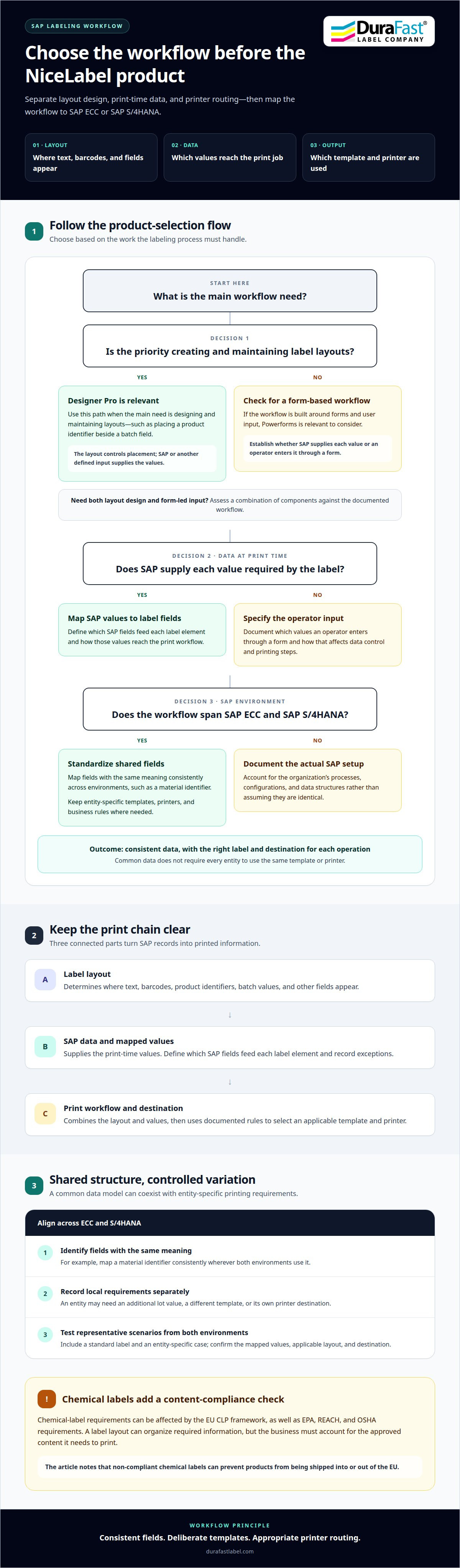
Separate the work into three parts: designing label layouts, supplying data at print time, and sending jobs to printers. The designer determines how fields such as a product identifier or batch value appear. The SAP connection supplies the data, and the print workflow combines the layout and values. For example, a product label might place an SAP item number beside a batch field. Consider all three parts when choosing NiceLabel software and an integration architecture.
Designer Pro is relevant when the main need is creating and maintaining label layouts. A layout sets the placement of text, barcodes, and other fields, while SAP provides values for a print job. Powerforms is relevant to workflows built around forms and user input. In either case, establish whether SAP supplies each value directly or an operator enters it through a form. That choice affects data control and the steps required to print.
Product selection also depends on the SAP environment and the required connection. SAP ECC and SAP S/4HANA can sit within a shared integration architecture that normalizes common fields while retaining entity-specific templates, printers, and business rules. This means the chosen NiceLabel product is only one part of the design. The integration must also define how fields map, which template applies, and how each business entity handles its labels.
Chemical labeling adds another consideration. The EU CLP framework can affect chemical-label requirements, and non-compliant chemical labels can prevent products from being shipped into or out of the EU. EPA, REACH, and OSHA requirements can also affect label and packaging compliance. A NiceLabel layout can organize required information, but software selection should account for the data and approved content the business needs to print.
Before choosing, document the SAP system, label types, data fields, forms, and printer workflow. Match those requirements to Designer Pro, Powerforms, or a combination of components. A fixed product label and an operator-completed label form, for example, call for different workflows. This comparison clarifies the software’s role without assuming every NiceLabel product supports every SAP connection in the same way.
How does NiceLabel integrate with SAP ECC and SAP S/4HANA?
Integration connects SAP business records with the label-printing workflow. SAP ECC or SAP S/4HANA holds operational data, while NiceLabel uses mapped values to populate label fields. For example, a print request for a product can include its identifier and batch value. The integration design determines how those values reach the selected label and printer.
A shared integration architecture can support both SAP environments. It can standardize common data fields while retaining entity-specific templates, printers, and business rules. For example, entities can use the same product-code field while applying their own approved layout or printer destination. This preserves a common data structure without forcing every operation into an identical workflow.
Start by identifying the fields that mean the same thing in ECC and S/4HANA. A material identifier, for example, should map consistently wherever both systems use it. Then separate shared fields from local requirements. One entity might need an additional lot value, while another uses a different template. Clear mapping keeps those variations visible and reduces ambiguity during printing.
The SAP environment also shapes the integration boundary. ECC and S/4HANA may have different processes, configurations, or data structures in a particular organization. The design should account for those differences instead of assuming the systems behave identically. For example, a label triggered by a warehouse transaction must receive the relevant values from that environment’s process. The label workflow should reflect the organization’s actual SAP setup.
Include printer routing and template selection in the architecture discussion. A common data field does not mean every SAP entity should print the same label. A shared product identifier can feed several templates, with rules determining which layout and printer apply. Documenting that relationship distinguishes consistent data from uniform operations. The goal is consistent meaning while preserving appropriate differences.
Organizations running ECC and S/4HANA side by side can define a transition path. Map common fields first, then record which templates, printers, and rules remain specific to each environment. For example, a business can keep an existing entity-specific template while aligning its product identifier with the shared field. This makes cross-environment requirements easier to review before changing the print workflow.
Keep ownership clear. SAP process owners understand the source records, and labeling stakeholders define the output fields and templates. Together, they can document field mappings, exceptions, and destinations. Test representative scenarios from both ECC and S/4HANA, including a standard label and an entity-specific case. To discuss how printer and label requirements fit your workflow, talk through your labeling setup.
What are the steps to configure NiceLabel SAP integration?
Treat configuration as a sequence of decisions, not a single connection setting. Use this NiceLabel SAP integration guide to organize the setup, then trace SAP data from transaction to printed output. A product label and a warehouse label may require different fields, templates, and destinations.
- Define the print scenario. Name the SAP process that needs a label, such as receiving, production, or shipping. Record who starts the print job and what event triggers it. For a shipping label, specify whether printing follows a delivery transaction or another business action.
- Identify the source data. List the SAP fields needed for each label. A product label might use a material identifier, description, and batch value. Identify where each value originates and whether the workflow receives it automatically or requires operator input.
- Map fields to label elements. Connect each SAP value to its intended position on the NiceLabel layout. For example, map the material identifier to readable text and its corresponding barcode. Keep field names and meanings clear so teams can distinguish similar values.
- Select the template and rules. Choose the layout that matches the print scenario. Define conditions for variations, such as a separate template for a particular business entity or product group. Keep these rules explicit, so the selected label reflects the transaction rather than operator guesswork.
- Set the printer destination. Link the print scenario to the intended printer or printer group. A receiving station and a production line may use different devices. Document the destination alongside its template and data source, so routing remains understandable during support and maintenance.
- Define operator input. Decide whether a form should collect values that SAP does not provide in the transaction. For example, an operator may need to select a label type before printing. Keep entered values distinct from SAP-sourced fields to support traceability.
- Test representative transactions. Run examples that cover standard labels and meaningful exceptions. Compare the printed product identifier, batch value, barcode, layout, and destination with the expected result. Test missing or changed data too, and confirm the workflow handles those cases deliberately.
- Prepare deployment and ownership. Record the approved field mappings, templates, routing rules, and SAP process owners. Promote the tested configuration through the organization’s release process. After deployment, review print exceptions and changed SAP fields, then update affected mappings and layouts.
Use a NiceLabel SAP integration guide to keep configuration decisions in one record. Trace a sample shipping transaction through its data, template, and printer to spot gaps before routine printing begins.
Connect SAP to NiceLabel via IDoc, RFC, or Web Services
IDoc, RFC, and web services are different ways to move SAP data into a labeling workflow. The right approach depends on what starts the print job, what information it carries, and how the receiving application handles it. Treat each as an integration design option, then confirm that the required NiceLabel and SAP components support the chosen setup.
- IDoc: SAP sends a structured document containing business data. A labeling workflow can use an incoming document to identify a print event and its associated fields. For example, a goods movement message could carry material and batch values for a receiving label. The design must define the document type, relevant fields, and how errors are surfaced.
- RFC: Remote Function Call supports communication between SAP and another application through a defined function interface. A workflow can request data or pass information as part of a print process. For example, a label request might use an SAP function to retrieve product details. Specify the function’s inputs, returned fields, and response handling.
- Web services: SAP and the labeling workflow exchange information through service interfaces. A print request can carry structured values, while a response can communicate processing status. For example, a warehouse application could submit a request containing a material identifier and destination. The interface must define its message structure and how failures are reported.
Choose based on workflow behavior. IDoc suits a process organized around exchanging business documents. An RFC-based design fits a workflow that calls a defined SAP function, while a web service can suit an architecture built around service requests. These are general patterns, not interchangeable settings. The SAP landscape and NiceLabel implementation determine which connection is usable.
For each option, document the same practical details: the SAP event, source fields, destination workflow, template selection, and printer routing. Then trace an example from start to finish. For a product label, follow the material identifier from its SAP source into the message, through the mapped label field, and into the selected print job. This shows whether the integration passes the right value and handles missing data appropriately.
Plan error handling before production. An IDoc process needs a way to identify a rejected or incomplete document. An RFC workflow needs a defined response when the function cannot return expected data, and a web service needs a clear outcome for failed requests. In every case, make the status visible to the responsible team and prevent incomplete values from silently producing a misleading label.
Finally, test the chosen method with representative SAP transactions and labeling scenarios. Compare the received values, generated label, and printer destination against the intended result. For help aligning printer and label requirements with your integration plan, discuss your workflow.
What SAP data and label formats can NiceLabel use
NiceLabel uses mapped SAP values to populate fields in label templates. The specific data depends on the business process and integration method. For a product label, SAP might provide a material identifier, description, or batch value. Mapping connects each incoming value to a specific element in the layout.
Group data into identifying fields, operational details, and optional presentation content. A material identifier can distinguish a product, while a batch value can help identify a production lot. A description can provide readable context. These are examples, not a fixed SAP field list. The organization’s records and the label’s purpose determine which values belong on it.
- Text fields: Map SAP values such as a product identifier or description to readable label text. Check how long values appear in the chosen layout.
- Barcode fields: Use a mapped identifier when the workflow requires a scannable representation. Keep the encoded value aligned with its readable counterpart.
- Conditional content: Apply a template or rule when entities need different label layouts. For example, a local business unit may require a different template from a shared product workflow.
- Operator-entered values: Distinguish information entered through a form from values supplied by SAP. This makes the origin of each printed field easier to understand.
Label formats depend on both the template and the physical printing workflow. A template arranges text, barcodes, and other content; the selected printer and label stock affect the printed result. For example, the same SAP product identifier could appear on a compact warehouse label or a larger product label. Each application needs a suitable template and destination.
Do not confuse an SAP message format with a printed label format. IDoc, RFC, and web services describe ways data may move between SAP and another application. The integration must interpret incoming fields, map them to the label design, and route the print job. A field with different names in two SAP environments may represent the same business value, but the mapping must be explicit.
Control chemical-label content and templates carefully. The EU CLP framework is relevant to chemical labeling in SAP environments. Non-compliant chemical labels can prevent products from being shipped into or out of the EU. EPA, REACH, and OSHA requirements can also affect label and packaging compliance. Keep approved content separate from routine transaction data.
Document each field’s source, meaning, destination, and intended display. Then test a representative SAP record against the finished label. Compare the printed text and barcode with the source values, and check that the correct template and printer were selected. Discuss your SAP label-data and format requirements.
DuraFast Label Company
DuraFast Label Company helps businesses match label-printing equipment and supplies to their workflow needs. Turn to its product range when your SAP labeling plans call for a printer, label stock, or both. The Epson ColorWorks C6000A and Primera LX910 Color Label Printer are options to consider for color label workflows. The Zebra ZT411 Thermal Transfer Printer may suit workflows using thermal transfer output, while DuraFast Matte Chemical Labels provide a label option for chemical products. Selection depends on the label format, material, and printing method required by your operation.
Bring your planned label use and output requirements into the decision. That makes it easier to narrow the equipment and supply options without confusing SAP integration with printer selection. For product guidance, contact DuraFast Label Company.
Make Your Next Labeling Decision Count
Choose an SAP labeling workflow as the starting point for your next improvement. Trace how its data becomes a printed label, then identify equipment and supplies suited to the intended output. This keeps the decision focused on an operational need, not just a software feature. With this NiceLabel SAP integration guide, you can connect the integration plan to practical printing choices.
DuraFast Label Company offers options including the Epson ColorWorks C6000A, Afinia L801 Color Label Printer, and DuraFast Matte Chemical Labels. These offerings can help you consider printer and label requirements alongside your workflow design, without treating hardware selection as a substitute for integration planning.
When you’re ready to discuss the printing products and supplies that align with your labeling needs, contact DuraFast Label Company. A clear next step can help move your labeling plan forward with confidence.
Frequently Asked Questions
What are the system requirements and supported SAP versions for NiceLabel integration?
The integration guide covers SAP ECC and SAP S/4HANA, and a shared architecture can normalize common fields across both while preserving entity-specific templates, printers, and rules.
What are common NiceLabel SAP integration errors and how can they be fixed?
Mismatched field mappings, templates, or printer destinations can produce inconsistent labels. Document mappings and routing rules, then test representative transactions from both SAP environments, including cases specific to each entity.
What security and compliance risks should be considered for NiceLabel SAP integration?
Chemical-label compliance requires consideration: EU CLP, EPA, REACH, and OSHA requirements can affect labels and packaging, and non-compliant chemical labels can prevent products from being shipped into or out of the EU. Security risks are not addressed.