Variable Data Label Printing Software for Product Labels
12th Nov 2026

A label can keep its layout while its text, barcode, image, or product details change from one print to the next. That’s the core idea behind variable data printing, and variable data label printing software connects those changing details to a label design so each output uses the right information.
Managing product details in a spreadsheet or database is familiar; turning those records into clear, consistent labels is the next step. Variable data label printing software links a template to a data source, places fields such as names or barcodes in the design, and prepares print-ready output. Field placement, text fit, barcode space, and fixed design elements all affect how usable the finished label is.
This guide explains variable data and how label software handles data connections, layout design, and exports. You’ll learn how spreadsheet, database, and external-file workflows support label production, and what to consider when designing a template for changing information. The goal is a practical overview, from organizing records to producing readable, consistent labels.
Key Takeaways
- Understand how changing text, images, and codes turn a standard label template into a personalized print run.
- Learn how spreadsheets, databases, and files can supply the values placed in each label.
- See how layout choices help keep variable fields readable and organized as product details change.
- Explore how output formats affect the path from a finished design to printed labels.
- Find out how label-design software, printers, and ribbons fit into a product-label workflow.
Connecting label templates to databases and spreadsheets
A template keeps fixed design elements in place while spreadsheet or database records supply changing label content. For example, an Excel row can contain a product description, barcode value, and requested label quantity.
Variable Fields and Merge Setup
A merge field marks where a record value appears in the template. Map each field to a column, such as ProductName, Barcode, or LotCode, and confirm that each column feeds the intended label position. A product name might populate a text box, while the barcode field feeds a barcode object. Clear field names make mappings easier to maintain.
Small businesses can compare two practical options: a standalone label-design program connected to a spreadsheet, or a broader platform linked to business data. Choose based on the required data connections, label layouts, and print workflow, rather than assuming one product suits every operation.
Smart Template Workflows
A smart template stores recurring layout choices, including fixed text, logos, and field locations. A variable print template then merges records into those positions for each output. When customizing a professionally designed template, retain the structure that works and adjust field names, text areas, and barcode placement to match the spreadsheet.
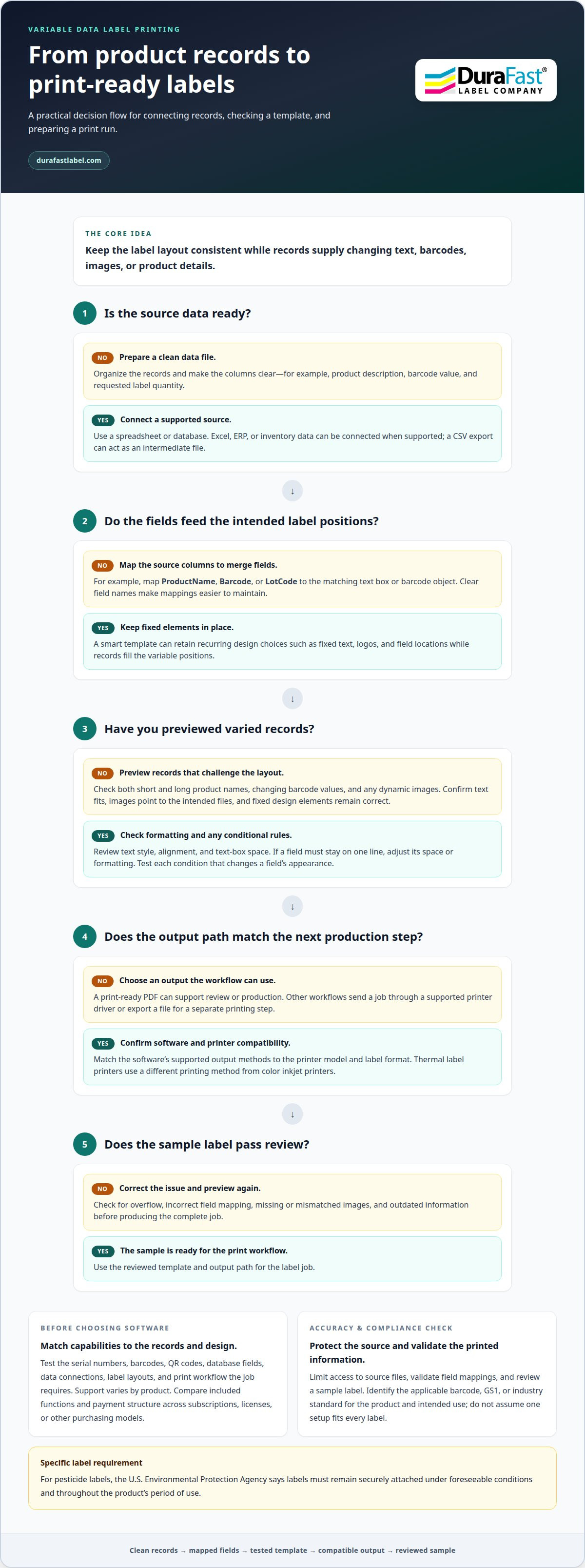
Follow this workflow: prepare a clean data file, connect its columns, place merge fields, preview records, and print a test label. Preview both a short and long product name before producing a batch. This catches text overflow before you reuse the template.
When selecting software, test whether it handles the serial numbers, barcodes, QR codes, and database fields your job requires. Support varies by product, so match the available functions to your records and label design before choosing.
U.S. barcode, GS1, and industry requirements depend on the product and intended use. Identify the applicable standard first, then validate the data and printed symbol against it; avoid treating one barcode setup as suitable for every label.
Software may be sold through subscriptions, licenses, or other purchasing models. Compare the included functions and payment structure, and weigh them against the connection, design, and printing features your workflow needs.
To connect Excel, a database, ERP, or inventory system, select a supported data source, map source columns to template fields, and preview sample records. A CSV export can serve as an intermediate file when the workflow does not use a direct connection.
To create variable labels, prepare records, connect the source, map fields, set up the template, preview the merge, and send the output to print. Confirm that a sample product record places its description and barcode in the intended positions.
Security, accuracy, and compliance risks include exposing product records, mapping the wrong column, or printing outdated information. Limit access to source files, validate field mappings, and review a sample label. For pesticide labels, the U.S. Environmental Protection Agency says labels must remain securely attached under foreseeable conditions and throughout the product’s period of use.
For a card-grading label workflow, a template can assign record fields to variable details while keeping the layout consistent; explore inkjet card grading labels as a related label format.
Exporting to PDF, images and printer formats
Export settings determine how a completed variable-data job moves from design to production. A workflow may use CSV, Excel, or database records as input, then create a print-ready PDF. Choose an output based on the next step, whether that is sharing a proof, storing a finished file, or sending labels directly to a printer.
PDF output is useful when a label layout must remain consistent for review or production. Before exporting, preview records with different field values. A long product name, short description, and changing barcode can reveal issues that one sample record might miss. Confirm the exported file shows the intended text, images, and fixed design elements.
Text formatting affects readability and fit. Set font style, alignment, and text-box size in the template, then preview records with varied content. A long product description, for example, may wrap differently from a short one. If a field must stay on one line, adjust its space or formatting before exporting the full job.
Conditional formatting changes a field’s appearance based on its value. A template might emphasize a selected product category or show a warning when a record contains a specific value. Make conditions clear and test records that trigger each rule. This helps catch an incorrect condition before producing labels.
Dynamic images can also vary by record. A database entry can identify an image file for the template to display, letting different products use different images within a shared layout. Check that each record points to the intended image and that it fits its space. A missing or mismatched file can leave a label incomplete.
Printer compatibility depends on the software’s supported output methods and the printer’s accepted input. Some workflows send a job through a supported printer driver; others export a file for a separate printing step. Match the software to the printer model and label format. Thermal label printers, for example, use a different printing method from color inkjet printers.
Use this export sequence to catch problems early:
- Select the input data and output format, such as a print-ready PDF.
- Preview records with different text, barcode, and image values.
- Check that each field fits the intended label area.
- Send a sample through the selected printer workflow before the complete job.
Those steps help identify whether the issue sits in the data, template, export, or printer path. For help matching label materials and printing equipment to your workflow, contact the label team.
What is Variable Data?
Variable data printing changes selected content from one printed item to another. A label can retain its layout while taking different values from source records. One product record might supply a product name and item code, while another supplies different values. The design stays consistent; the connected data determines what changes. Software places those values in defined fields and prepares each record for printing.
Flat files offer a straightforward way to import records. A CSV file, for instance, stores values in rows and separates fields into columns. A label workflow can map a column such as ItemCode to a label field. Before importing, align column headings with template fields and remove records that shouldn’t be printed. This suits a controlled file-based workflow, especially when someone prepares data for each job.
A database integration reads records from a structured data store. Instead of preparing a new flat file for every run, the workflow can select records using a query or another supported connection method. For example, a product table might provide descriptions, while an inventory table supplies current identifiers. The key setup step is defining which records and fields each label uses. This keeps label output connected to the underlying business information.
RESTful API integrations let software exchange data with an application through defined requests and responses. A business application could send a record to a labeling workflow when a user prepares an order. The integration must align fields, data types, and expected responses. For example, a value stored as text should map to a text field, not a quantity field. API workflows can reduce manual file handling, but they require a compatible connection and clear data mapping.
Application integration depends on where label creation fits into the work. A user might start in an inventory system, select an item, and pass its record to the label-design software. Another workflow may import a file generated by a separate application. Map each application field to its label destination, then test a representative record to confirm the template uses the intended values.
Coding needs vary by connection. Importing a prepared CSV may require field mapping but no custom code. A RESTful API or tailored ERP connection may need technical setup, validation rules, or developer support. Some platforms offer no-code or low-code integration options; others require more implementation work. Choose a connection method based on the data source, update frequency, field mapping, and who will maintain the workflow.
Data connections through APIs, databases, and files
Choose a connection based on how the source system stores and updates label data. A CSV file suits a prepared batch, while a database connection can draw selected records from structured tables. An API can pass records between applications as part of a connected workflow. Each option needs a clear mapping between source values and label fields.
Files are often the simplest connection to manage. A spreadsheet can be saved as CSV, imported, and mapped to the template’s field names. Before each print job, review the file’s column headings, record values, and image references. For example, a row may contain a product code and image filename. A consistent file structure makes repeat imports easier to control.
Databases support recurring jobs that use records stored in tables. Set up the connection, choose the relevant table or query, and map its columns to label fields. A database record can also identify an image file, allowing different records to use different images within the same layout. Keep image paths and product records aligned so each selected record displays the intended visual.
An API can link label creation to another application’s workflow. For example, an order system may pass product details to label software when an order is prepared. The integration must agree on field names, formats, and how the receiving application handles missing values. These details matter: a blank item identifier should not silently produce an incomplete label. Some platforms provide no-code or low-code setup; others need developer support for integrations or validation.
Use these checks to compare connection options:
- Update pattern: Decide whether data arrives as a prepared file or from a live system.
- Field mapping: Confirm that each source field has the right destination.
- Image handling: Test that a record points to an available, correct image file.
- Validation: Define how the workflow responds to blank or mismatched values.
- Maintenance: Identify who manages imports, database access, and integration changes.
Test the connection with sample records before production. Include a typical record, one with a longer text value, and one with an image reference. Confirm each value reaches the intended field. For file imports, repeat the test after changing a column heading. For a database or API workflow, check how updated records appear on the label. These checks reveal mapping and connection issues early.
The right setup depends on the source system, update process, and required level of automation. A prepared CSV can avoid integration work for occasional jobs. A database or API may better suit workflows that rely on connected business applications. Match the connection method to the people maintaining it and the label data it must deliver.
Designing variable-data label layouts
A strong variable-data layout treats fixed and changing content as separate design elements. Identify what stays constant, such as a logo or product category, and what changes, such as an item name, barcode, or ingredient text. Assign each changing value a clear place. This structure lets one template serve multiple products without making labels feel crowded or inconsistent.
Plan for the longest realistic value, not just the first record. A short product name may fit neatly, while a longer one could wrap into a barcode area. Preview the fullest description and check text fit, alignment, and spacing. If the design supports automatic text adjustment, test that behavior too. Keep essential information visible as values change.
Give barcodes and QR codes dedicated areas. Keep these objects distinct from nearby text and graphics so they are easy to locate and scan. In the design preview, test different codes alongside changing product details. A code that looks balanced beside a short name may crowd a longer one. Adjust object placement before saving the reusable template.
Text treatment can respond to content, too. Tagged text management can highlight predefined words within a text field, which is useful for emphasizing allergens in ingredient statements. Define the words or terms that trigger emphasis, then preview records with and without them. This makes the formatting rule easier to review than manually styling each label.
For labels with product images, set a consistent image area and align it with the text fields. A record may point to a different image file, while the template preserves the same placement. Check that each image remains clear within its assigned space. Keep the product name, image, and barcode visually distinct so a changing image doesn't compete with identification details.
Some teams manage many versions of a label. One reported workflow involved printing 50 or 60 distinct label designs, with several hundred copies of each and sometimes thousands per design. A reusable template can reduce repeated layout work in that kind of production. Organize fields and static elements consistently, then test representative records before preparing a large run.
Use this design review before releasing a template:
- Preview the longest text and a record with a short value.
- Check barcode, QR code, image, and text placement together.
- Test conditional emphasis with records that trigger and omit it.
- Confirm that fixed elements remain unchanged across records.
Need help matching a label workflow to its design and printing requirements? Discuss your label layout needs.
DuraFast Label Company: datamax ribbons
DuraFast Label Company is a natural next step when you’re selecting label software, printers, or printing supplies. Its offerings include Labelview label design and barcoding software, Datamax ribbons, and color label printers such as the Epson ColorWorks C6000A and digital label printing solutions.
For a workflow that needs label design and barcoding software, consider Labelview. If you’re sourcing ribbon, Datamax ribbons may fit your purchasing needs; match ribbon selection to the printer and print setup. The Epson ColorWorks C6000A and related color label printers provide reliable hardware options to consider alongside your variable data label printing software.
To discuss software, ribbon, or printer options for your labels, contact DuraFast Label Company.
Put Your Label Workflow Into Practice
Next, define what a successful label run must deliver. Decide which product information changes, who maintains the source data, and where labels enter the packing or production process. These choices help narrow the variable data label printing software and equipment suited to your workflow.
Match the printer and label material to the job, rather than choosing them separately. DuraFast Label Company offers the Epson ColorWorks C6000A, the Afinia L801 Color Label Printer, and DuraFast Matte Chemical Labels. These options can help you plan a product-label setup around your intended printing approach and label needs.
Start with a representative label design and sample records. Review how the output fits the intended process, then refine the setup before expanding it. A clear plan makes the move from data preparation to label production easier to manage.
Contact DuraFast Label Company to discuss your label workflow and product options. Take the next step with a setup shaped around your needs.
Frequently Asked Questions
Can I preview personalized designs before exporting?
Yes. Previewing records before export helps catch differences a single static design can hide. Review examples with short and long product names, optional fields, and different barcode values. Confirm each record displays the right content and that no fields overlap. If the job uses conditional formatting, preview a record that activates each rule. This lets you refine the design before creating the final output.
How does VDP differ from mail merge?
VDP can change more than text fields. A mail merge commonly inserts record values, such as names, into a repeated layout. Variable data printing can also adjust images, graphics, and other visual elements for each record. For example, a label could pair a product description with a record-specific image. This distinction matters when a job needs customized design elements, not just different text in otherwise identical layouts.
What are common use cases for VDP?
Common uses include direct mail, event badges, personalized packaging, certificates, business cards, and promotional materials. For product labels, a manufacturer might use variable content to identify different product versions while retaining a consistent brand design. An event organizer could personalize badges with attendee names. The best fit is a print job where individual pieces need distinct details but the overall format remains recognizable and consistent.
What file formats are used in VDP?
CSV and Excel files can provide records for a variable-data job, while a database can supply information directly through a connection. Print-ready PDFs are a common output format. The suitable combination depends on how source data is stored and how the finished job will be used. For example, a team might prepare records in a spreadsheet, import them, then export a PDF for review or printing.
What types of content can be personalized with VDP?
VDP can personalize names, addresses, QR codes, barcodes, images, logos, and product details. A product label might pair a changing item description with a barcode value while preserving its brand logo and layout. A database record can also identify an image file for a specific label. Choose fields according to what each printed item needs to communicate, and ensure the data source includes the matching values.
What is variable data label printing software and how does it work?
Variable data label printing software links label designs with changing information from files or databases. The design defines where each value belongs, and the software uses each record to create a personalized label. For example, a product record can supply its description and barcode. The software prepares labels from those fields, helping teams produce distinct product labels without designing each one separately.
What are the best variable data label printing software options for small businesses?
Small businesses can compare a standalone label-design program connected to a spreadsheet with a broader platform linked to business data. Choose based on the data connections, label layouts, and print workflow your operation requires.