Zebra ZT231: Features, Configs & 2026 Buying Guide
5th Oct 2026
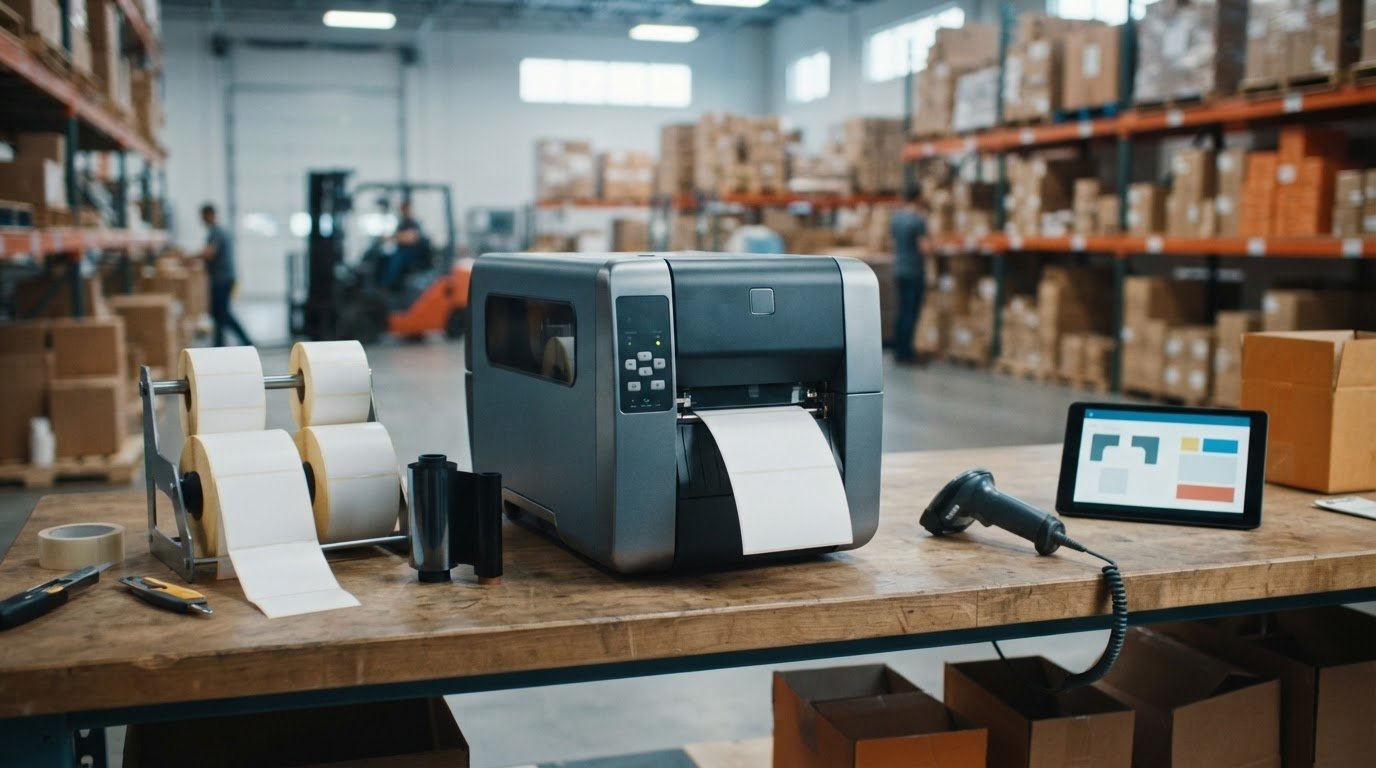
What if the best Zebra ZT231 printer for your operation isn’t the one with the most options, but the one that matches your labels and daily workflow? Choosing an industrial printer can seem simple until print method, media, ribbons, resolution, and connectivity all affect the decision.
It pays to look beyond the printer’s headline specifications. The ZT231 supports both direct thermal and thermal transfer printing, and each method suits different label needs. The right setup also depends on how durable your labels need to be, how quickly you need to print, and how the printer will fit into your existing systems.
This guide explains what the Zebra ZT231 is designed to do, which specifications and configuration details to consider, and how to plan for compatible labels and ribbons. You’ll also learn how to match print resolution and connectivity to your workflow. DuraFast Label Company offers the ZT231 alongside Zebra ribbons and thermal transfer labels, so you can plan for the printer and essential supplies together.
Key Takeaways
- Match the Zebra ZT231 printer’s configuration to your label tasks and workflow instead of choosing by specifications alone.
- Compare print resolution and maximum print width with your label dimensions and barcode requirements.
- Choose direct thermal or thermal transfer based on ribbon use, label construction, and the demands of the application.
- Compare expected print volume and operating conditions with the manufacturer’s specifications to judge workload fit.
- Before buying, align the printer configuration, media, ribbon needs, and connectivity, then follow current Zebra setup documentation.
Zebra ZT231 Printer: Overview and Key Workflows
The Zebra ZT231 printer is an industrial barcode label printer designed for recurring business label production. Unlike a desktop printer intended for lighter, space-conscious setups or a mobile printer built for printing on the move, the ZT231 is a stationary printer for workplace labeling tasks. Zebra Technologies manufactures the model; for company background, see Zebra Technologies.
The printer category is a useful starting point, but it won’t tell you on its own whether the model fits your operation. The ZT231 supports direct thermal and thermal transfer printing, giving businesses options for different label workflows. Its fit depends on the configuration, labels, expected print frequency, and operating environment. Compare those factors with the manufacturer’s specifications rather than assuming an industrial printer will suit every workload.
Where Does the ZT231 Fit Among Label Printers?
Desktop printers can suit work areas with more modest or intermittent label needs. Industrial models are typically considered for recurring production in business environments, where label output is part of a regular process. Mobile printers fill a different role: printing closer to the point of use. To compare stationary industrial options, browse DuraFast’s industrial barcode printer range. Choose a category by considering print frequency, media requirements, and where the printer will operate.
Which Businesses Might Consider the Zebra ZT231?
Start with the label task, not the industry. A warehouse might evaluate the ZT231 for inventory or location labels with scannable barcodes. A manufacturer might consider it for product identification labels printed repeatedly during a work process. A shipping operation could assess it for labels used to identify and route parcels. These are examples of possible applications, not a guarantee that one configuration suits every setting.
In each case, consistent output and barcode readability matter. Label dimensions, print content, media, and required resolution all affect the match. Consider how often labels are needed and how the printer will connect to the systems that create them. A printer chosen for the task and work area can make production more straightforward; choosing by category alone may leave important workflow needs unaddressed.
Which Zebra ZT231 Specifications and Configurations Should You Check?
Compare the exact unit configuration with your label requirements before buying. The Zebra ZT231 printer’s configuration affects how well it fits a workflow, so compare each specification and option with your actual setup. Use the details below to narrow your requirements, then confirm the selected unit against current Zebra documentation, especially where optional features are concerned.
| Specification | ZT231 detail | What to assess |
|---|---|---|
| Print method | Direct thermal or thermal transfer | Whether your label workflow uses ribbon |
| Resolution | 203 dpi or 300 dpi | Text, graphics, and barcode detail |
| Maximum print width | 4.09 in. (104 mm) | Width of your largest label or tag |
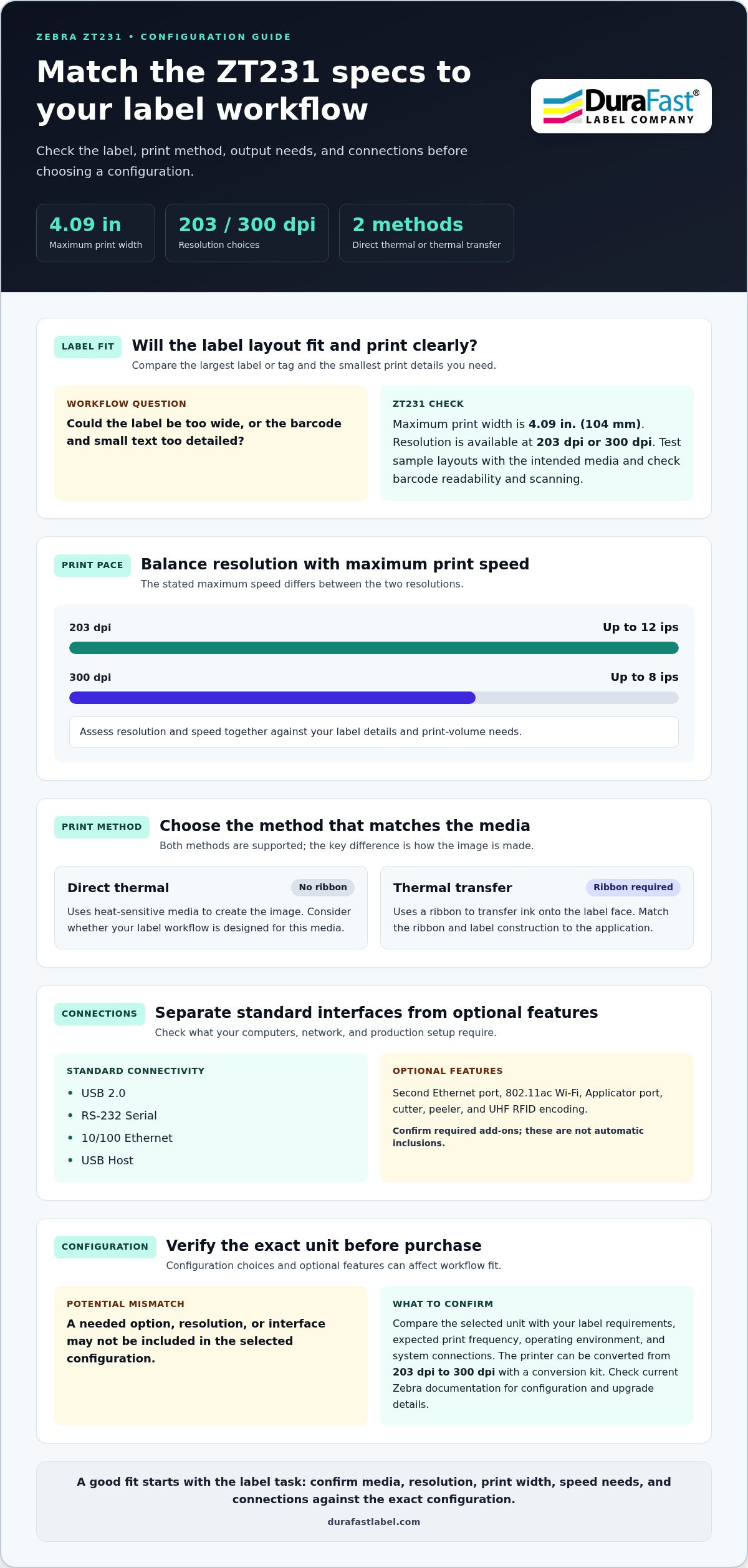
| Print speed | Up to 12 ips at 203 dpi; up to 8 ips at 300 dpi | Resolution and speed needs together |
| Standard connectivity | USB 2.0, RS-232 Serial, 10/100 Ethernet, and USB Host | Connection to computers and networks |
| Optional features | Second Ethernet port, 802.11ac Wi-Fi, Applicator port, cutter, peeler, and UHF RFID encoding | Options required for your deployment |
How Do Resolution and Print Width Affect ZT231 Label Output?
Resolution affects how finely the printer renders small text, graphics, and barcode elements. Choose between 203 dpi and 300 dpi by testing sample label layouts against your barcode requirements. Higher resolution isn’t automatically necessary for every job. Maximum print width is the printable area, so measure your largest label or tag and confirm the layout fits within 4.09 inches. Barcode formats and data standards matter too; global GS1 standards provide guidance for standardized product identification and supply-chain data.
Which Connectivity and Optional Features Matter?
Match the standard interfaces to the computer, network, or host equipment that will send print jobs. Treat Wi-Fi, a second Ethernet port, and an Applicator port as options, not automatic inclusions. The cutter, peeler, and UHF RFID encoder are also options. The printer can be converted from 203 dpi to 300 dpi with a conversion kit. Confirm the selected configuration and upgrade details in current Zebra documentation.
For label layouts with small elements, test print readability and barcode scanning with the intended media. Then compare the printer’s standard interfaces and required add-ons with your production setup. To discuss the configuration and label requirements you’ve identified, share your ZT231 workflow details with DuraFast.
Direct Thermal or Thermal Transfer: Which ZT231 Print Method Fits Your Labels?
The Zebra ZT231 printer supports direct thermal and thermal transfer printing. The right choice depends on your label stock and where the labels will be used. Both methods rely on heat, as explained in this overview of thermal printing, but they create images differently. Direct thermal printing uses heat-sensitive media; thermal transfer uses a ribbon to transfer ink onto the label face.
| Consideration | Direct thermal | Thermal transfer |
|---|---|---|
| Ribbon | Not used | Required |
| Media | Heat-sensitive label stock | Label face stock paired with a suitable ribbon |
| Workflow question | Does the label’s expected life and exposure suit direct thermal media? | Does the ribbon and label combination meet the application’s needs? |
| Check before ordering | Media type and printer configuration | Media, ribbon, and printer configuration compatibility |
When Is Direct Thermal Printing a Practical Choice?
Direct thermal printing avoids ribbon loading and ribbon inventory, which can simplify a workflow that uses suitable heat-sensitive labels. Consider it when the selected stock suits the label’s expected life and exposure conditions. Heat, sunlight, abrasion, and chemicals can affect label performance, so don’t assume a direct thermal label will remain readable in every environment. See direct thermal label printers for a related technology reference.
When Should You Choose Thermal Transfer Labels and Ribbons?
Thermal transfer printing uses a ribbon, and its type must suit the label’s face stock. Consider how long the label needs to remain legible and whether it will face heat, sunlight, abrasion, or chemicals. No print method guarantees durability on its own; the material, ribbon, print setup, and environment all contribute. Browse thermal transfer labels as a supply category, then match the ribbon to the label and intended use.
Before settling on either method, confirm media compatibility for the specific ZT231 configuration and check that the intended label dimensions and stock are suitable. For thermal transfer, check ribbon type and fit as well. DuraFast supplies Zebra ribbons, but compatibility depends on the specific printer setup and media combination, not simply the brand name.
How to Evaluate Whether the Zebra ZT231 Fits Your Labeling Workflow
Assess the job from start to finish before settling on a configuration. An industrial category alone doesn’t establish whether a printer can handle your workload. Compare your requirements with current Zebra specifications, then make sure the labels, supplies, and connections work together.
- Define the label task. List what each label must identify and where it will be used. Note barcode content, text, graphics, label size, and where the label will be applied.
- Specify the media. Record the label material, roll format, dimensions, and print method. Consider the label’s required life and exposure conditions, then match media to the application.
- Estimate print volume. Track how often labels are printed and how many are needed during a typical production run or work period. Compare expected use with manufacturer specifications rather than assuming a printer category guarantees workload fit.
- Review the environment. Identify where the printer will operate and whether labels face heat, sunlight, abrasion, or chemicals. These conditions can affect media choice and label readability.
- Map workflow connections. Identify the computer or network sending print jobs, the business software creating labels, and how finished labels reach the point of application.
What Should You Confirm Before Selecting a Configuration?
Bring the requirements together in one checklist: label dimensions and material, roll format, print content, expected frequency, printer location, and connection needs. Include any placement or dispensing steps, plus who monitors and replenishes label stock and ribbons. Match each item to current manufacturer documentation and the specific ZT231 configuration. This makes it easier to catch a mismatch before ordering equipment and supplies.
How Do You Plan Supplies and Label Design?
Pair the chosen print method with suitable media and, for thermal transfer, an appropriate ribbon. Plan the label design as well: barcode size, text, graphics, and placement must fit the label and remain readable in the intended workflow. Label design software and the path from business data to printer output are part of the setup, not afterthoughts. For additional context on thermal printer selection, explore the professional thermal printer guide.
Once you’ve documented the task, media, volume, environment, and connections, use that checklist to narrow down the configuration and supply requirements. Discuss your ZT231 labeling requirements with DuraFast.
Buying and Setting Up a Zebra ZT231 Printer with the Right Supplies
Plan the supplies and setup alongside the printer itself. Before ordering a Zebra ZT231 printer, make sure the configuration, print method, labels, any required ribbon, and connection method all suit the same workflow. A mismatch can affect loading, print quality, or how easily jobs move from your software to the printer.
What Supplies Should You Plan for the ZT231?
Start with the label stock. Record its material, width, length, roll format, core size, and other roll dimensions, then compare them with the specifications for your exact printer configuration. The right media depends on the print method and application, so don’t assume labels described as “thermal” are automatically suitable.
For thermal transfer, plan for a ribbon as well. Ribbon material and dimensions must suit both the label face stock and printer setup. DuraFast supplies thermal transfer labels and Zebra ribbons, giving you a starting point for planning the printer and consumables together. Confirm compatibility for the specific combination before using it for routine production.
What Should a First-Run Setup Checklist Include?
Follow current Zebra documentation for configuration-specific loading, connections, and setup steps. Use this checklist to prepare for a controlled test run:
- Confirm the printer configuration, selected interface, and appropriate driver.
- Set the label dimensions and print settings to match the stock being loaded.
- Load the intended media and, for thermal transfer, the specified ribbon.
- Print a representative label with typical text, graphics, and barcode content.
- Check alignment, text legibility, barcode scanning, and consistent media feeding.
A test using the actual label stock and representative content can reveal layout or readability issues before regular production begins. If the test output needs adjustment, use the model-specific instructions rather than generic settings or unsupported repair steps.
Once the configuration and supplies are aligned, you’ll have a clearer path from setup to repeatable label production. Contact DuraFast about the Zebra ZT231 and your label requirements.
Choose a ZT231 Setup That Works for Your Workflow
The Zebra ZT231 printer can support different labeling needs, but a sound buying decision starts with the details of your operation. Match the configuration, resolution, print width, and connectivity to your labels and production setup. Then choose direct thermal or thermal transfer based on your media, ribbon requirements, and the environment where labels will be used.
Plan supplies alongside the hardware. Check label dimensions and material, roll specifications, and ribbon compatibility for the exact configuration. A test print with representative label content can help you assess alignment, legibility, and barcode readability before routine production.
DuraFast offers the Zebra ZT231, Zebra ribbons, and thermal transfer labels, so you can consider the printer and key supplies together. Talk with DuraFast about the Zebra ZT231 and your label workflow to take the next step toward a setup that fits your needs.
Frequently Asked Questions
What is the Zebra ZT231 printer used for?
The Zebra ZT231 printer is used for recurring business barcode and label production. Example tasks include printing product identification, shipping, and inventory labels. Whether it fits a particular operation depends on label dimensions, print method, expected usage, work environment, and printer configuration. Compare those needs with the manufacturer’s specifications rather than assuming the printer suits every workload because it is an industrial model.
Is the Zebra ZT231 a direct thermal or thermal transfer printer?
The ZT231 supports both direct thermal and thermal transfer printing. Direct thermal printing uses heat-sensitive media and doesn’t require a ribbon. Thermal transfer printing uses a ribbon to transfer the image onto the label. Choose based on the label stock, expected label life, and exposure conditions. Media performance depends on the material and environment, so neither method alone guarantees that a label will suit every application.
What label sizes can the Zebra ZT231 print?
The ZT231 has a maximum print width of 4.09 inches (104 mm). This is the maximum printable width, not a guarantee that every label size or roll will fit. Measure your labels or tags and compare the printer’s current media specifications, including roll format and dimensions, with the exact configuration. Make sure the layout also leaves room for required text, graphics, and barcodes within the printable area.
What is the maximum print speed of the Zebra ZT231?
The maximum print speed is up to 12 inches per second at 203 dpi and up to 8 inches per second at 300 dpi. These are rated maximums, not a guarantee of output speed for every job. Label design, print settings, media, and workflow can affect results. Compare the speed and resolution of the configuration you’re considering with your production requirements, using current Zebra documentation as the reference.
Which Zebra ribbons are compatible with the ZT231?
Ribbon compatibility depends on the printer configuration, ribbon dimensions, and label face stock, so don’t select a ribbon by brand name alone. For thermal transfer printing, match the ribbon type to the label material and confirm its specifications against the intended ZT231 setup. DuraFast supplies Zebra ribbons; confirm compatibility for the exact printer and media combination before ordering or beginning routine production.
Can the Zebra ZT231 print shipping labels and barcodes?
Yes. The ZT231 can print shipping labels and barcode labels when the media, label layout, print method, and configuration suit the job. Check label dimensions against the printer’s maximum print width, and select resolution based on barcode and text detail. Before routine use, print a representative label on the intended stock and scan its barcode to assess alignment and readability in your workflow.
How do I choose between the Zebra ZT231 and a desktop label printer?
Compare print frequency, media requirements, and where the printer will operate. The ZT231 is an industrial model intended for recurring business label production, while a desktop printer may suit lighter or intermittent needs. Neither category guarantees a match for every workload. List your label sizes, supplies, expected usage, and connection needs, then compare them with each model’s specifications.