Zebra ZT620 Printer: Specs, Configs & Buying Guide 2026
2nd Oct 2026

What if the right industrial printer isn’t the fastest or most feature-packed option, but the one that matches your labels and daily workload? The Zebra ZT620 printer is built for demanding, high-volume applications, with a 6.6-inch print width, speeds up to 12 inches per second, and 203 dpi or 300 dpi resolution options. But the model name alone won’t tell you which configuration belongs in your workflow.
It’s reasonable to check the details before choosing. Print method, media size, resolution, connectivity, and optional features can vary by configuration, and a printer designed for industrial volumes may be more capacity than your operation needs. Labels and ribbons also need to suit both the printer and the application.
This guide explains what the ZT620 can do, how to assess whether its format fits your label volume, and which configuration details to confirm before ordering. We’ll also cover thermal-transfer media, ribbon compatibility, and setup resources to review. DuraFast Label Company lists the ZT620 alongside thermal-transfer labels and Zebra ribbons, so you can use this overview to narrow down the equipment and supply questions to check for your setup.
Key Takeaways
- Match the Zebra ZT620 printer to your actual production, shipping, or warehouse labeling volume before choosing an industrial model.
- Separate model-family capabilities from SKU-specific details, then verify the exact configuration before ordering.
- Choose print method, label dimensions, resolution, connectivity, and software based on the jobs and systems in your workflow.
- Check that thermal-transfer labels and Zebra ribbons are compatible with the printer and your application.
- Use a pre-order checklist to confirm the SKU, power and connection requirements, included accessories, and setup resources.
Is the Zebra ZT620 printer right for your industrial label workflow?
Start with your workflow, not the printer’s size or reputation. The Zebra ZT620 printer is a six-inch-wide industrial model intended for demanding label applications, but that capacity only makes sense if your recurring jobs, media, and operating conditions call for it. A production line printing labels throughout a shift has different needs from a team printing occasional warehouse labels.
The ZT620 is an industrial label printer for recurring, demanding workflows, while print resolution, connectivity, media handling, and other features depend on the exact configuration. A retailer-listed example reports a maximum print width of 6.6 inches and a top speed of 12 inches per second. Treat those as example specifications, not a promise for every SKU. Confirm usable media width and performance against the configuration you’re considering.
Which workloads are a good fit for the ZT620?
Look at how often you print, where labels are produced, and what happens if printing stops. Production-line labels may need to keep pace with a repeatable process; shipping and warehouse labels may need to support frequent batches or larger formats. If downtime would interrupt an important operation, assess whether the printer’s capacity and your planned support arrangements suit that risk.
Also check whether your application needs wider labels or tags. Don’t choose an industrial printer just because it looks more durable or capable. The case is stronger when your label volume, production demands, media requirements, and operating conditions justify an industrial-duty machine.
When might another printer class fit better?
If your workflow requires frequent, sustained printing or media beyond a smaller printer’s practical range, compare your needs with industrial barcode printers. If output is occasional, labels are compact, or workspace is limited, a desktop unit may be a more practical fit. Compare the actual workload, label dimensions, and space available before settling on a printer class.
For broader model comparisons, use the article’s 2026 industrial printer roundup as a next research step. The goal isn’t to select the largest printer; it’s to choose a machine that meets the job without adding capacity your operation won’t use.
Zebra’s background can also help frame the manufacturer behind the printer. For a brief history of Zebra Technologies, see the company overview, then return to the practical question: does this model’s width, workload capacity, and configuration match your application?
Zebra ZT620 specifications: separate standard capabilities from SKU details
A ZT620 model name identifies the printer family, not every feature included in a particular unit. Check the complete part number before comparing specifications or placing an order. That small step can help prevent a mismatch between your media, print method, network, and host system.
| Specification | Model-family information | What to verify for the exact SKU |
|---|---|---|
| Printer class and width | Industrial printer in the six-inch-wide class | Usable media width and maximum print width |
| Resolution | 203 dpi and 300 dpi configurations are listed | Resolution supplied with the selected part number |
| Print speed and width | Varies by configuration and operating conditions | One retailer-listed example specifies 203 dpi, 6.6-inch print width, and speeds up to 12 inches per second. Confirm these figures for your SKU. |
| Print method | Direct thermal and thermal transfer may be offered by configuration | Which method the unit supports and which supplies it requires |
| Connectivity | Reported options include USB, serial, Gigabit Ethernet, and Bluetooth; optional wireless configurations may differ | Ports and wireless features included on the exact unit |
Verify the full ZT620 part number before relying on a specification, because resolution, print method, width, speed, and included interfaces may differ by configuration.
How do print method, resolution, and print width affect the result?
Direct thermal printing uses heat-sensitive media and doesn’t use a ribbon. Thermal transfer uses a ribbon to transfer ink onto compatible label stock. Confirm the printer’s method and match labels and ribbons accordingly. DuraFast lists thermal-transfer labels for these applications.
Resolution can affect how small text, barcode elements, and graphic details reproduce, but the result also depends on the label design and materials. Check sample output for your application, and consult the GS1 General Specifications when barcode structure and print quality requirements matter. Confirm both maximum media width and printable width for the chosen configuration.
Which connectivity and control options should buyers verify?
Match the printer’s interfaces to your host computer and network. The research lists USB 2.0, RS-232 serial, Gigabit Ethernet, and Bluetooth 4.0 as standard connectivity, with optional Wi-Fi 6 and Bluetooth 5.3 configurations. Treat these as details to check against the exact part number, not assumptions about every unit.
Ask your technical team to confirm the required connection, operating environment, label software, and printer language. If your workflow relies on ZPL, verify support for the selected configuration before ordering. If you’re unsure which SKU or supplies match your setup, share your requirements with DuraFast to help clarify what to check.
ZT620 versus other printer options: address the capacity and fit question
An industrial model isn’t automatically the right choice. The Zebra ZT620 printer may suit a workflow that needs wider labels and industrial equipment, but its fit depends on your actual print volume, label format, integration needs, and operating environment. Compare those requirements first. A larger printer isn’t a benefit if your workflow won’t use its capacity.
What are the practical strengths and trade-offs of an industrial six-inch printer?
A six-inch industrial format can be useful when applications call for wider labels or tags, or when printing is part of a demanding production process. The possible advantage is a closer match to the job, not a guaranteed speed or durability outcome. Confirm performance and environmental suitability for the exact configuration and your working conditions.
Balance that potential fit against the space the printer needs, integration work, and the supplies your jobs require. A printer can be capable on paper yet add unnecessary setup complexity if its interfaces, print method, or media handling don’t match your existing process.
Quick fit check
- Potential advantages: industrial format, capacity for wider label applications, and configuration options to assess against your workflow.
- Trade-offs to check: footprint, compatibility with your host systems, and the right media and ribbon combination.
- Before deciding: verify model-specific speed, duty requirements, environmental claims, and included features rather than assuming they apply across the ZT620 family.
When should you compare the ZT620 with another printer?
If printing is lower-volume, labels are narrower, or workspace is tight, compare the ZT620 with a desktop thermal printer. A desktop unit may fit better when the workflow doesn’t require an industrial printer. Check the media dimensions, print method, connection needs, and expected job pattern before choosing.
The Zebra ZT411 is another model to consider only when a specific requirement makes the comparison useful. For example, compare the two if your label width, throughput needs, or required configuration differ from what you’re evaluating in the ZT620. Don’t assume one model is faster, more durable, or less costly to own without verifying reliable, configuration-specific information.
Use the same checklist for every option: required label and tag sizes, recurring volume, system compatibility, available space, and supplies. For broader context on printer technologies and selection factors, consult the thermal printer selection guide. A measured comparison can help you avoid buying more capacity than the workflow needs, or selecting a printer that can’t handle the required media and connections.
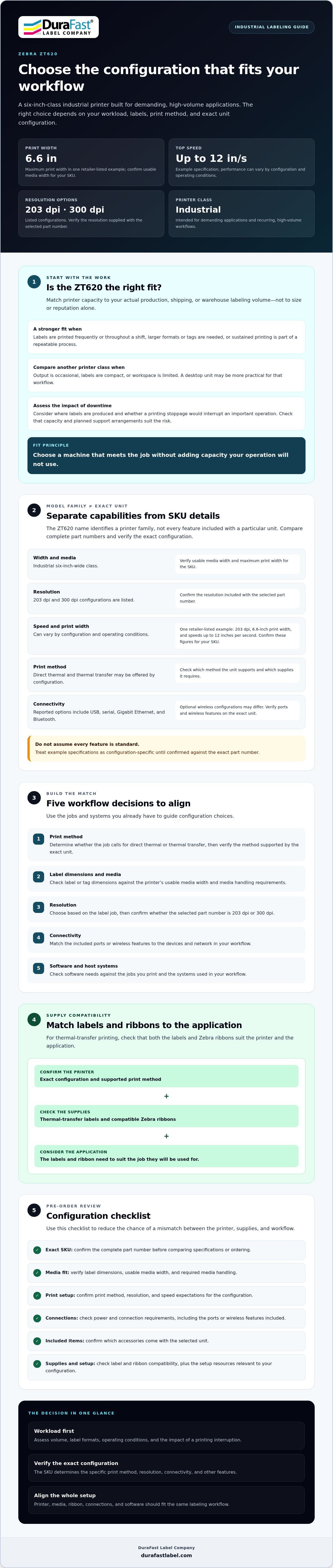
How to choose a Zebra ZT620 configuration, labels, and ribbons
Choose the printer and supplies as one system. Before ordering a Zebra ZT620 printer, work through this checklist with the person who manages label production and your IT team. It helps turn a broad model choice into requirements you can verify against a specific configuration.
- Define the label job. Note what each label identifies, how it will be handled, and the conditions it will encounter after printing.
- Confirm the print method. Check whether the selected configuration supports direct thermal, thermal transfer, or the method your workflow requires. Direct thermal uses heat-sensitive media; thermal transfer uses a ribbon.
- Record media dimensions. Specify label width and length, roll dimensions, core size, and any tag requirements. Confirm these against the printer’s documentation for the exact configuration.
- Select resolution. Consider the smallest text, barcode elements, and graphic details in your label design. Verify the available resolution for the SKU, and test representative output before production.
- Match interfaces and software. Confirm the required USB, network, or other connection, plus operating-system, driver, label-design software, and printer-language requirements.
- Check the complete order details. Verify the exact part number, power requirements, connection options, and included accessories. Don’t assume these are identical across configurations.
How do you confirm media and ribbon compatibility?
Start with the printer documentation, then compare the supported media dimensions with your label rolls. Select face stock and adhesive for the label’s end use and handling conditions. For thermal transfer, match the ribbon type to the label material and confirm the recommended combination before running a full job. DuraFast lists thermal-transfer labels and Zebra printer ribbons as relevant supply categories. Confirm roll width, core, and ribbon specifications for your setup.
What should you check for software and system integration?
Ask your IT team to confirm the operating system, driver, network setup, and label-design software needed for deployment. Check that the selected printer configuration supports the required label language and barcode workflow, including ZPL if your system depends on it. Before installation, review Zebra’s current model-specific downloads and documentation for setup and compatibility details.
Have an uncertain SKU or supply match? Contact DuraFast with your printer and media requirements to help clarify what details to verify before ordering.
Buying a Zebra ZT620 through DuraFast: supplies, questions, and next steps
Before choosing a Zebra ZT620 printer, bring the key details together: workload, exact SKU, print method, media, ribbon, connectivity, and software. DuraFast lists the ZT620 among its industrial printer offerings and sells thermal-transfer labels and Zebra ribbons. Confirm the current configuration and supply compatibility for your application rather than assuming every version or media combination is the same.
What information should you have ready before asking about the ZT620?
A clear description of your workflow makes it easier to identify what needs checking. Gather these details first:
- Application and workload: What labels or tags do you print, how often, and in what production or operating environment?
- Label specifications: Provide label dimensions, material, adhesive needs, roll dimensions, and any handling or durability requirements.
- Printer configuration: Share a known SKU or part number, if available, and confirm the desired print method and resolution.
- System requirements: Note the host system, required interface or network connection, label-design software, and printer language used in your workflow.
- Ribbon needs: If using thermal transfer, describe the label material and any ribbon requirements you already know.
These specifics help focus the conversation on fit and compatibility, not just the printer model name. If you don’t have every detail yet, identify what still needs confirmation before placing an order.
How can you plan for supplies and post-purchase resources?
Confirm the label and ribbon combination before production begins. Check the printer’s documentation for supported media dimensions, then verify that the face stock, adhesive, roll size, and ribbon type suit both the selected configuration and the label’s end use. Keep the exact printer part number with your supply notes so future reorders can be checked against the right setup.
For setup, use Zebra’s current model-specific documentation to confirm drivers, software, and configuration instructions. Review the manufacturer’s current warranty and support terms directly rather than relying on assumptions. DuraFast sells printing equipment and supplies; it doesn’t provide custom label printing or on-site technical repairs.
Ready to discuss a ZT620 configuration or compatible supplies? Contact DuraFast about your ZT620 setup with your application, SKU details, media requirements, and connection needs.
Make your ZT620 decision with confidence
The right choice starts with the job. Match the Zebra ZT620 printer to your actual label volume and application, then verify the exact SKU before relying on figures for resolution, print width, speed, print method, or connectivity. A model name alone doesn’t confirm which configuration you’re buying.
Plan the whole setup, not just the printer. Check that label dimensions, material, adhesive, and ribbon suit the application, and confirm software and connection requirements with your team. These steps help you avoid mismatches and choose capacity that fits your workflow.
DuraFast lists the ZT620 among its industrial printer offerings and sells thermal-transfer labels and Zebra ribbons. If you’re still weighing a configuration or supply match, contact DuraFast to discuss your Zebra ZT620 requirements. Share the application, SKU details, media, and system needs to make the conversation more specific. With the right details in hand, you can move ahead with a clearer, more confident buying decision.
Frequently Asked Questions
What is the Zebra ZT620 printer?
The Zebra ZT620 printer is an industrial label printer in Zebra’s ZT600 Series, positioned as a six-inch-wide standard model. It’s designed for business label workflows, but whether it fits depends on your workload, label dimensions, operating environment, and required configuration. Check the complete part number before relying on specifications such as print speed, resolution, interfaces, or media capacity. Confirm that the selected model meets your application’s actual requirements.
Is the Zebra ZT620 a thermal-transfer printer?
A retailer-listed ZT620 configuration supports both thermal-transfer and direct-thermal printing, but don’t assume every configuration or product listing is identical. Verify the print method for the exact SKU. Thermal transfer uses a ribbon to print on compatible label stock. Direct thermal uses heat-sensitive media and generally doesn’t require a ribbon. Choose the method first, then confirm that your labels and any ribbons match the printer and application.
What is the maximum print width of the Zebra ZT620?
Zebra positions the ZT620 as a six-inch-wide standard industrial printer. A retailer listing reports a maximum print width of 6.6 inches for one configuration, but that figure shouldn’t be treated as universal. Confirm the maximum media width and printable width in the manufacturer’s documentation for your exact part number. Compare those limits with the label width your workflow requires before ordering the printer or media.
What resolution and print speed does the Zebra ZT620 offer?
Resolution and speed depend on the selected configuration. One retailer listing reports 203 dpi and a maximum speed of 12 inches per second for a particular SKU. Check the full part number and manufacturer documentation to confirm those figures apply to the unit you’re considering. Your production results can also depend on label design, media, and application settings, so test representative labels before relying on a configuration for a workflow.
Can the Zebra ZT620 print both direct-thermal and thermal-transfer labels?
A listed ZT620 SKU is described as supporting both print methods, but verify this capability for the specific configuration before purchasing. Direct thermal requires compatible heat-sensitive labels. Thermal transfer requires compatible labels and a suitable ribbon. Check the printer documentation and supply specifications to confirm compatibility, including media dimensions. If you’re planning production, test the selected label and ribbon combination before running a full job.
How do I choose labels and ribbons for a Zebra ZT620?
Start with the exact printer configuration and confirm its print method and supported media dimensions. Then match label material, adhesive, roll format, and ribbon specifications to the application and conditions where labels will be used. Direct-thermal labels need heat-sensitive stock; thermal-transfer labels need a compatible ribbon. Check the printer documentation and confirm the supply combination with your supplier before buying or starting production.
Where can I get drivers and support for the Zebra ZT620?
Zebra’s ZT620 support resources provide a route to model-specific drivers, software, downloads, and warranty information. Select resources for the exact printer configuration, and confirm current warranty terms directly with Zebra. DuraFast Label Company sells label printing equipment and supplies, including the ZT620 and related thermal-transfer supplies, but doesn’t provide on-site technical repairs. Review manufacturer documentation for setup and support details.